
If the establishment has more than one bar, you should set the lines to match the bars.
For example, this bar has 12 lines: 8 for the Main Bar and 4 in their Banquet Room for special events.
Listing the lines to the correct bars makes it easier for everyone to understand which lines were cleaned. This also makes it easy for a technician who has never cleaned this establishment before to know where all the taps are.
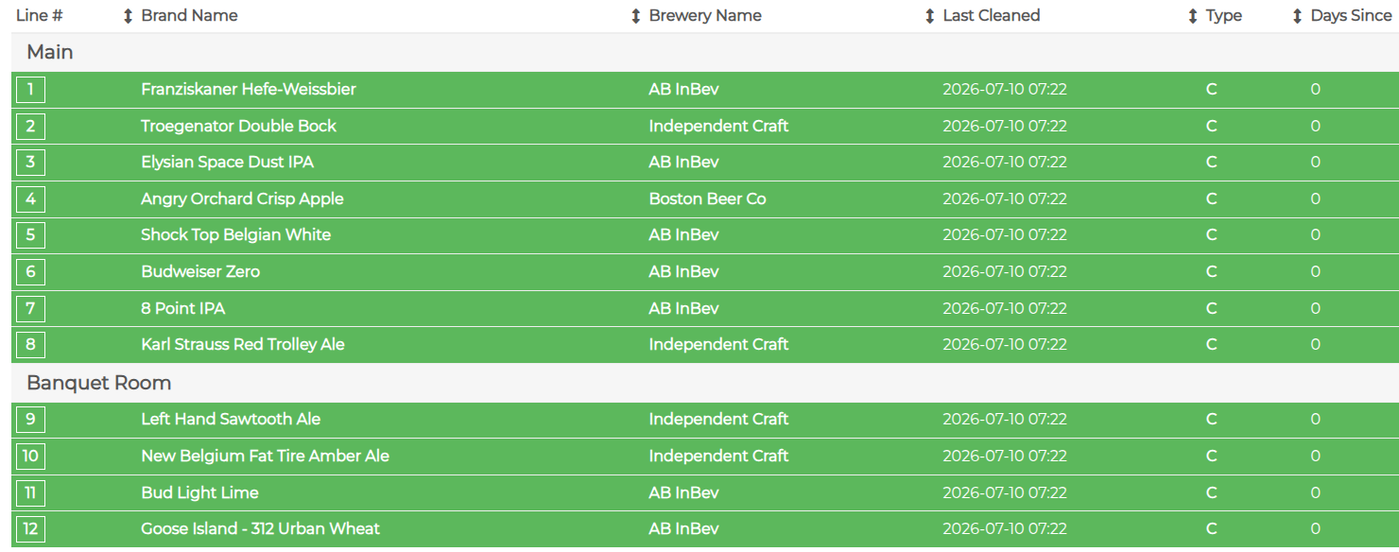
To set this up correctly, you must first have the correct number of lines in the establishment; again, this should include lines that you do not service. In this example, you would service all of the lines.
To set the different bar names and lines, click the establishment name to open the establishment details tab. Scroll down to the establishment notes section and find the Number of Bars drop-down list. Select the number of bars in the establishment. When you select more than one, the Bar Names fields will appear.
Enter the bar names and the number of lines at each bar. The first bar you list will host line 1 up to the number you enter in the # of lines field for that bar. In this case, you can see below how the Main Bar hosts lines 1-8. Then add the remaining lines in the second bar. You can have a maximum of four bars in an establishment. If you need more, please email support.

Make sure to hit Save after you have made the changes.
NOTE:
Usually, when there is a second bar, the lines are Y’d in the fridge so one keg feeds two bars. You should be charging for cleaning two lines in this case; a line is defined as the number of faucets in an establishment, not the number of couplers. Adding Bar Names helps you explain this concept more clearly to your customers.