To manually record a line cleaning, head to the Establishment Manager Page, and click on the establishment name you would like to record the cleaning for.
Navigate to the LC Status\Brands tab:
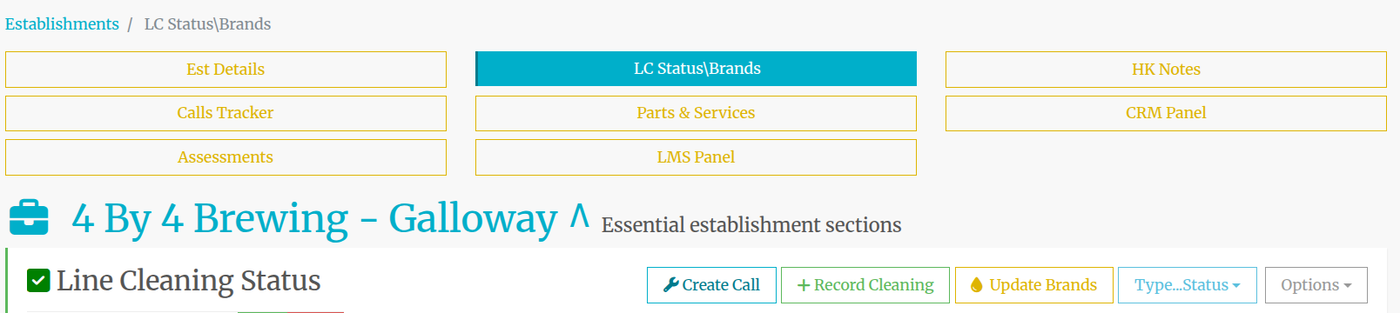
Then click on the green +Record Cleaning button.
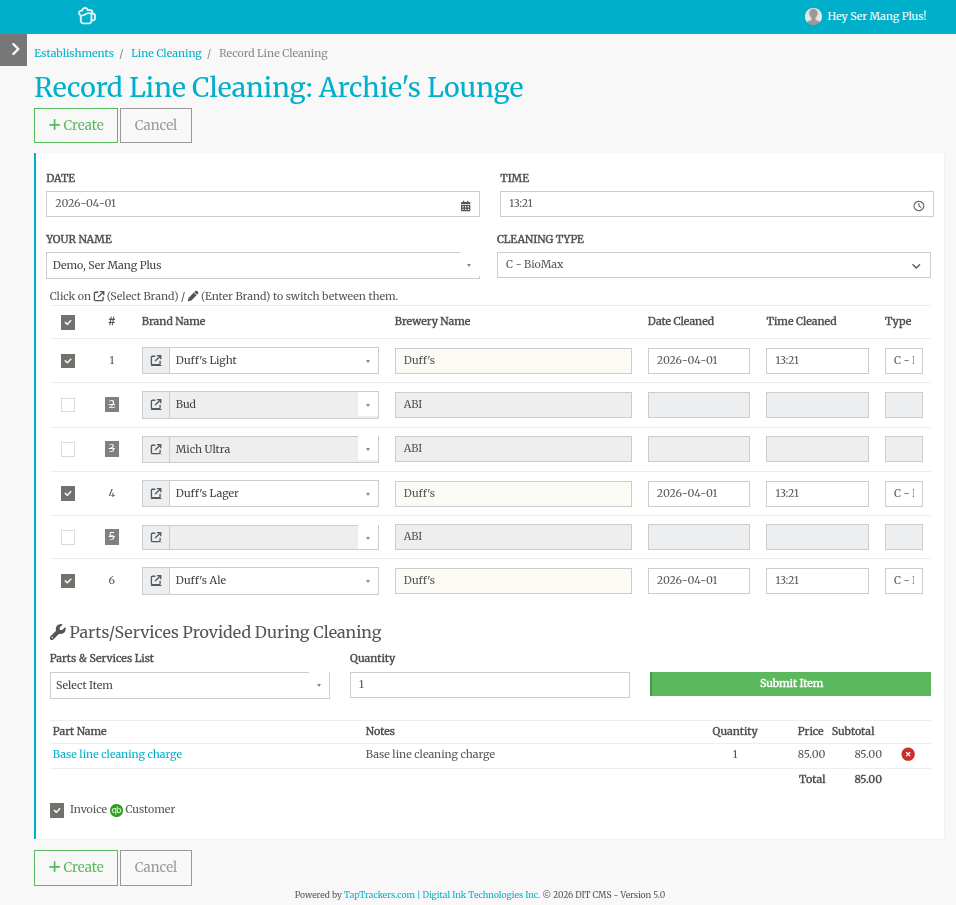
Select the time, date, and type of clean you did. Then check off the lines that you cleaned.
Lines that you do not normally clean are shown in gray and with a line through the text. These are Non-Tracked lines that you normally do not clean. If you need to change a Non-Tracked line to a Tracked Line, you can change the brand on this page by selecting the new brand from the drop-down or typing it in.
Once you are ready to record the cleaning, click on +Create button at the bottom.
Parts / Services Provided During Cleaning
If you have a Default Part/service selected for that establishment on the Est Details tab, it will automatically appear at the bottom of the page.
If you subscribe to the QuickBooks feature, you can also send the cleaning to QB to create an invoice.
Alternatively, you can add a new part service (that you sold during the cleaning) or remove the listing and add a replacement.