
You must first update/set the brands for the establishment before setting the line cleaning sequence.
You need to tell your techs which lines to clean before you can set the cleaning sequence.
Where Do I Find The Line Cleaning Sequence?
The line cleaning sequence is set on the Establishments Detail tab. Go to Establishment Manager, click on the establishment that you'd like to create the sequence for, then scroll down to the Line Cleaning Features Setting section.
What Is A Cleaning Sequence?
A line cleaning sequence is the order in which cleans are completed in an establishment. When the Tap Trackers system auto-schedules your cleans, it schedules each establishment's clean based on the next in its sequence. Some establishments may have only one clean in the sequence, while others may have multiple cleans.
If you do a caustic clean every four weeks and an acid every 12 weeks, your sequence would be:
Caustic
Caustic
Caustic & Acid

So every third clean would include an acid clean - every third month. Once the system schedules the third clean (both) it starts the sequence over again, starting with caustic, then caustic, then caustic & acid again.
If you clean lines every two weeks and do an acid clean every 12 weeks, your sequence would be:
Caustic
Caustic
Caustic
Caustic
Caustic
Caustic & Acid
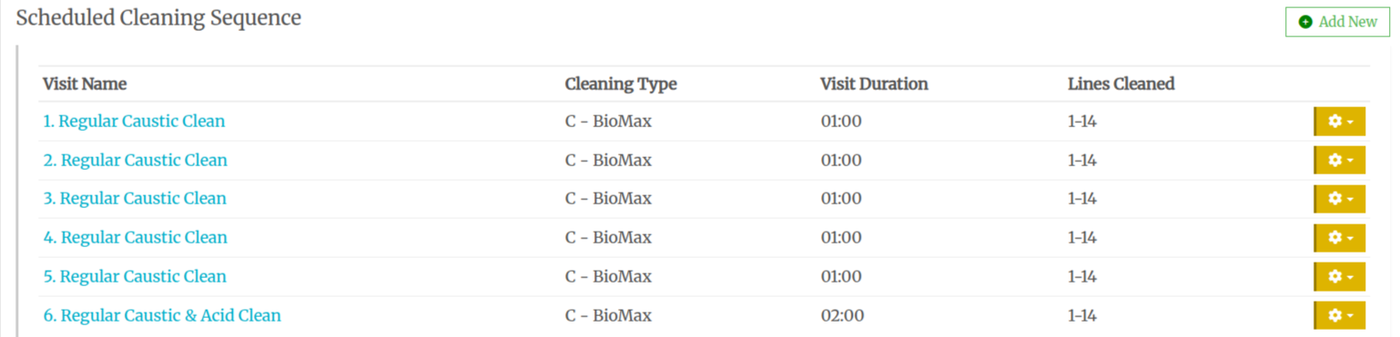
Creating A Line Cleaning Sequence
In the line cleaning Sequence section, click on +Add New button
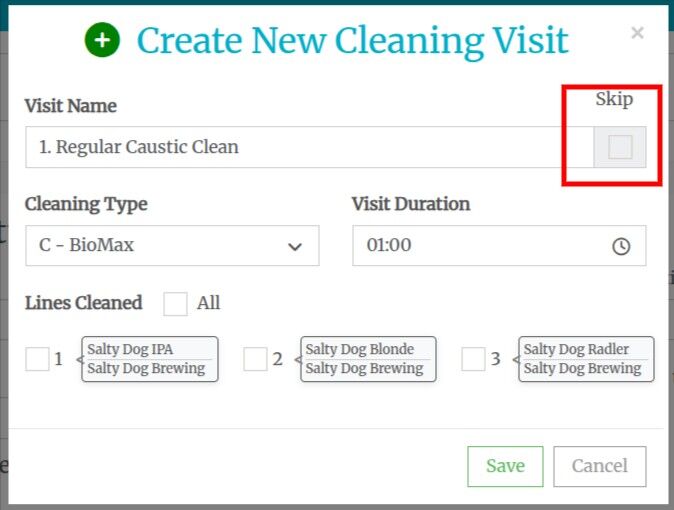
Then a pop-up will appear:
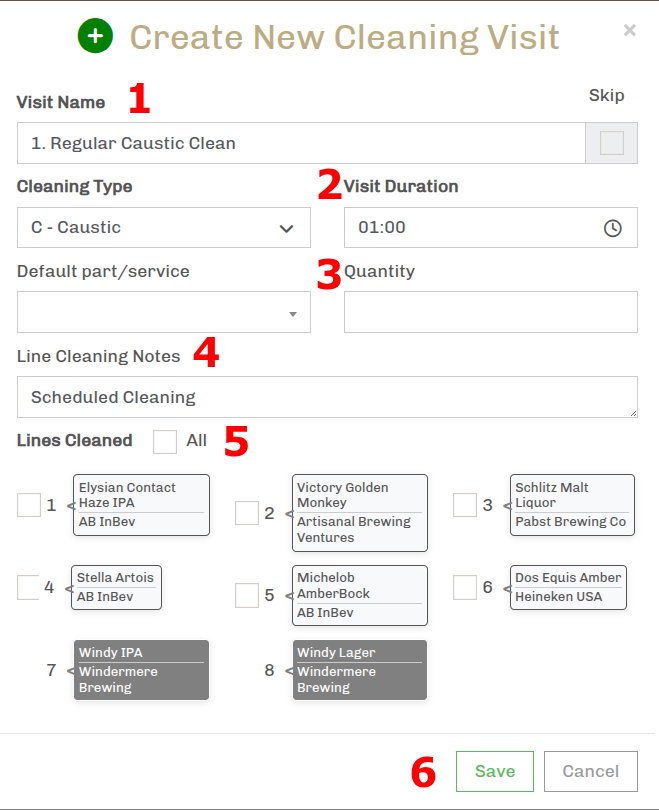
The system will automatically number the clean for the next one in the sequence. If you need to move a clean up or down in the sequence, you can change the number in the visit. The cleaning sequence is listed automatically in numerical order. You can edit the name and cleaning number, but ensure there are no duplicate cleaning numbers.
Select the cleaning type from the drop-down and how long the cleaning should take.
Select the service that you would charge for this cleaning and the quantity.
Add any notes for this clean - this shows up on the call plan. “Scheduled Cleaning” is the default.
Check the lines you would like to clean during this visit. Lines you do not clean (competitors' lines) are shown with a grey background and a strikethrough. If you need to change these lines to ones you clean, you’ll need to do that first in the Update Brands tab.
Hit Save.
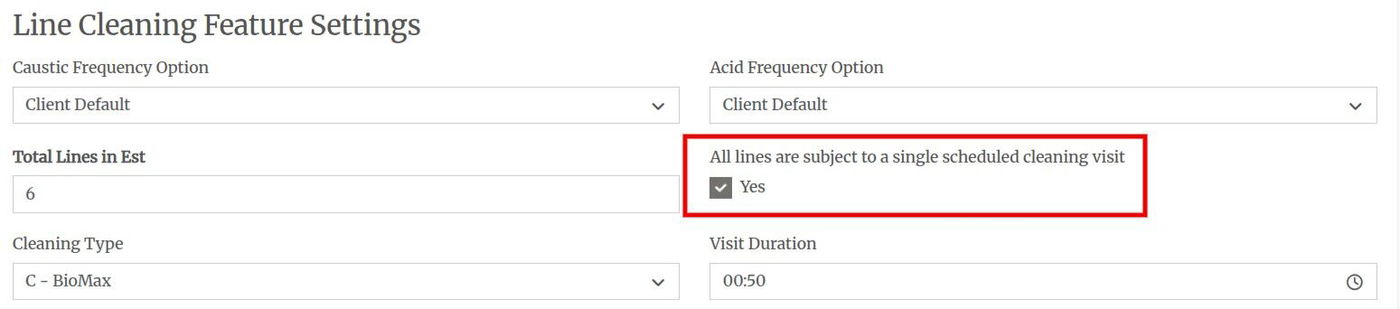
All Cleans Are The Same Each Visit
If you only do a caustic clean every two weeks and don't do any acid cleans (or you will fit them in as needed), you can check the box to show that every clean is the same, each time the establishment is due:
Skip Cleans/Visits
If your route is based on two-week line cleaning but your establishment is only cleaned every four weeks, you can add a Skip so the system will not schedule a line cleaning that week.
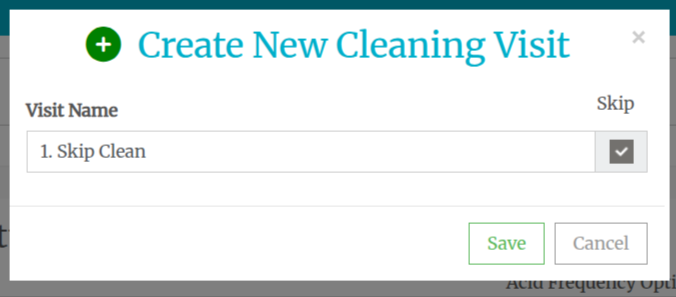

In the above example, clean 1 will be scheduled on the first round, but this establishment will be skipped in the next scheduling round. This is perfect for an establishment that is on an every two-week route, but is cleaned every 4 weeks. Also, no acid cleaning here.
Using Skips For Wine & Cocktail Lines
If you have some lines that are only cleaned once every three months (12 weeks) then you can build a sequence like this:

In this example, you can see lines 1-20 are cleaned every two weeks. This is on an every two-week route.
Lines 21 and 22 are wine/cocktail lines that are cleaned every 12 weeks, so we've scheduled both caustic and acid clean once in the six clean sequence, clean #2 in this case, which calls for both an acid and caustic cleaning for all 22 lines.
You should stagger the acid cleans on a route because they take twice as long. If you schedule the acid clean for every establishment on that route in the same week, all of your cleans that week will take twice as long, creating 16-hour days instead of eight.
Creating a Sequence for Wine / Cocktail Only Establishments
If the route is based on a two-week cleaning cycle, then you should create a sequence like the following:

We'll skip this stop 5 of 6 times and the one time it is added as a stop, we’ll only use an acid and clean the wine lines.
We understand that this is a complicated feature. It also takes a significant time investment to set it up. However, if you are a medium/large sized company with a team of techs, this is a game-changer for how much time it will save you each week through auto-route scheduling with sequencing.
Like everything, we are here to help and would be happy to connect on a video call walk-through to explain it further and set you up for success.