

Call Plans are a detailed list of stops on a route - a list of calls and the details for the day:
- The locations of each call (stop)
- The start and duration times for each stop
- Details of the required work
- information about the establishment, contact names and information, plus detailed information about the establishment's draft system
- No Go Hours
- plus more
A list of Call Plans for each tech is listed on the Call Plan page.
The Tap Trackers system automatically generates Call Plans as part of the Route Scheduling system.
Call Plans are emailed to the tech the afternoon of the day before the calls.
The Call Plans
The Call Plans page lists all active call plans. You can search for past ones using the date picker in the filter section at the top of the page.
Here you can see a list of call plans:
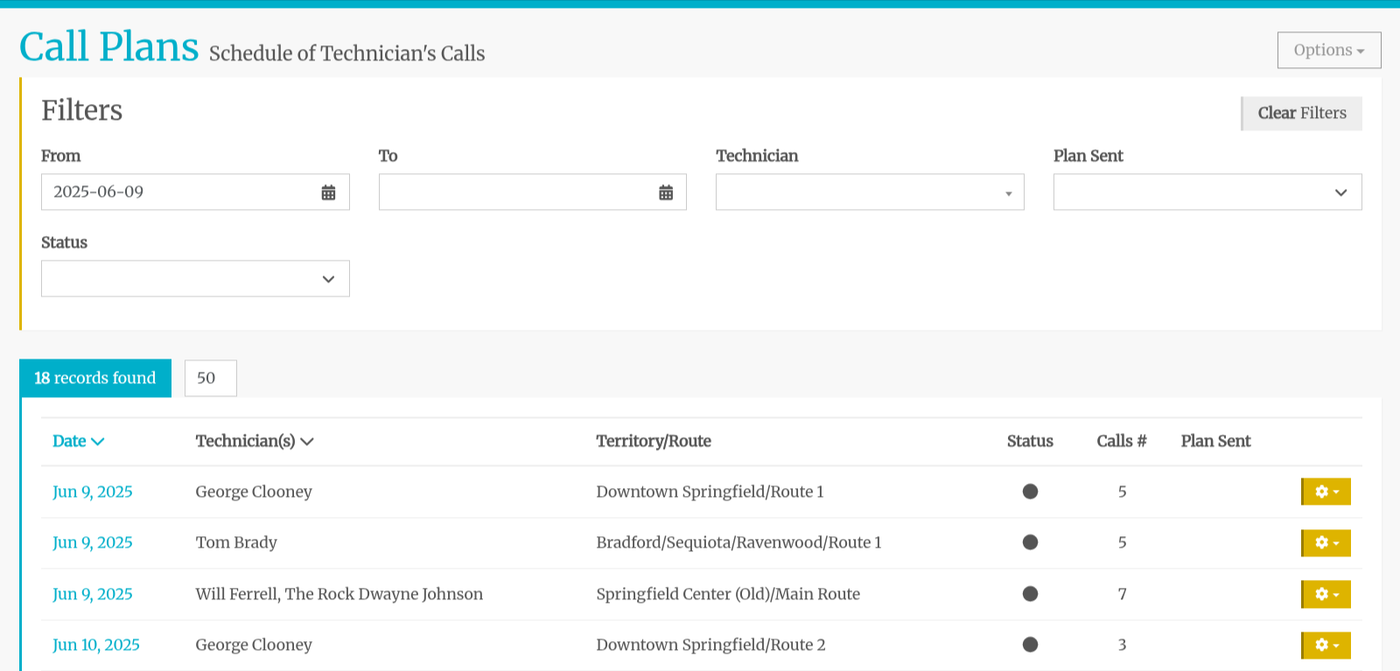
Call Plan Building Page
Clicking on the date brings you to the call plan, where you can edit it:
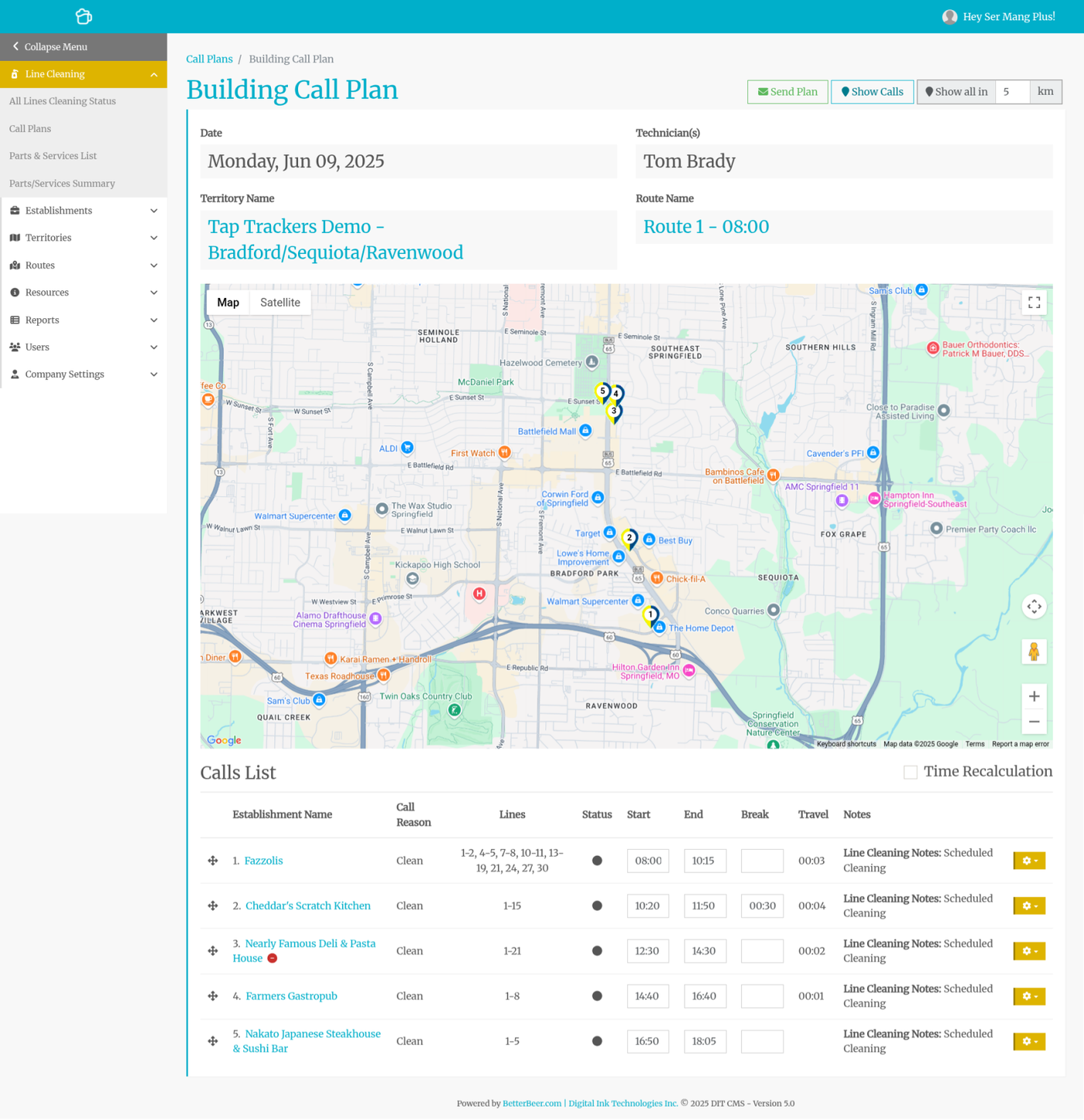
Send Plan
Plans are automatically sent the afternoon of the day before. You can resend the plan by clicking on the Send Plan button.
Route Name / Start Time
The Route Start time was established when you created the route. To edit it, go to the Routes Template Manager, select the Route and edit the Start Time.
Time Recalculation
If you would like to add break time or make adjustments to start and finish times, check the Time Recalculation checkbox. You will receive a pop-up notification and if you accept the changes, click on Proceed. This will adjust the start and finish times for the calls.
Rearranging Calls
Changing the order of the calls is easy. You drag and drop the calls to a different position.
Google Maps will automatically calculate the travel time between the calls.
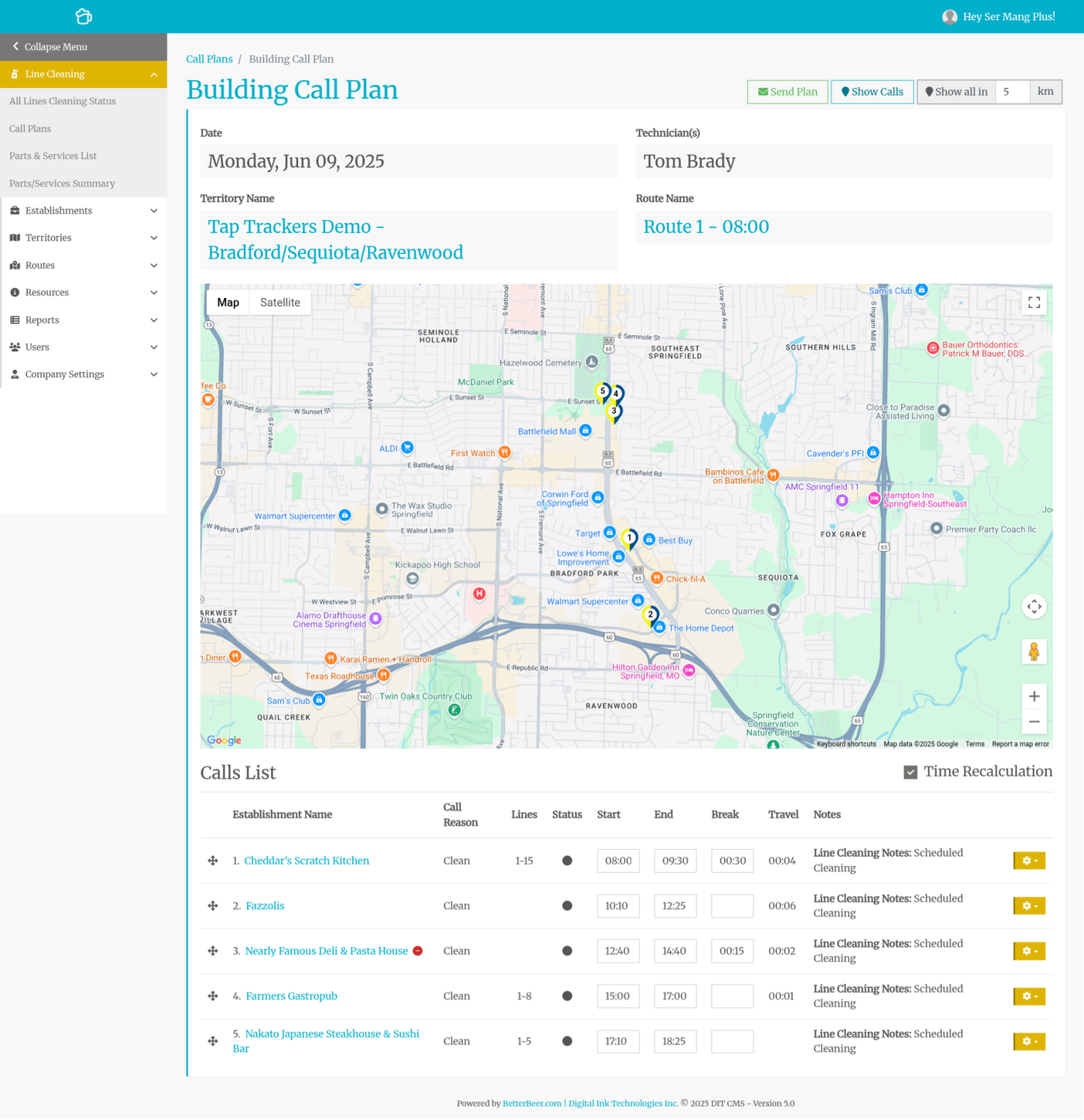
Here we switched calls one and two by dragging call two up to the first position, and added a 15-minute break after call three.
Then we checked Time Recalculation.
Notice that the numbers of the calls on the map changed, as did the travel time.
Status
- Dark Grey - not started
- Gold Check Mark - in progress
- Green Check - completed
- Red - Refused Service
Delete / Update Call
Click on the Gear Icon to the right of the call to Update or Delete it. Update takes you to the Call Plan Create page with the information already filled in.
If you would like to add any calls to the plan, see the Adding Calls To An Existing Plan article.