
Since Route Templates are built without knowing which day of the week the route will fall on when auto-scheduled, we have built in schedule conflict notifications. On the Scheduled Routes page, the date that the route is scheduled will be in bold red font if there is a conflict.

No Go Hours Conflict
Click on the date with the conflict for the scheduled route (July 3rd in the above example). If there is a No Go Hours conflict, you will see a red circle with a white square inside.
Stop One in this scheduled route has a red circle icon: 
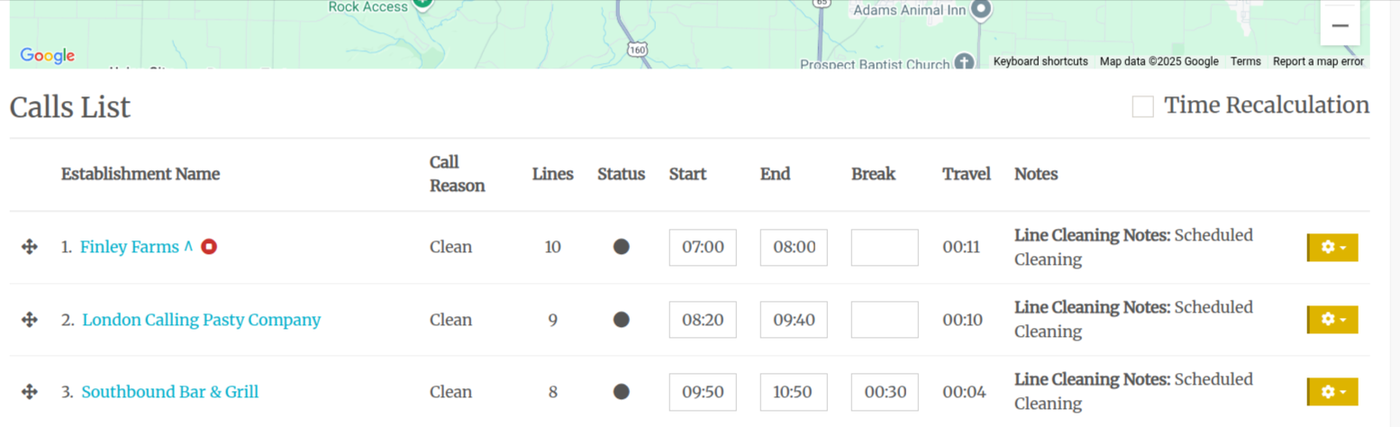
This indicates that the stop is scheduled during the establishment's No-Go Hours. Clicking on the icon pulls up the No Go Hours :
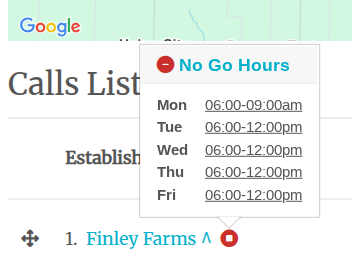
This Route has a 7am start time, so stop one is scheduled to begin at 7am. However, the establishment has informed us that we cannot get in until 9 am on Mondays or noon on the rest of the weekdays.
Since this scheduled Route falls on a Thursday, we cannot change the start time to noon, as it would push our day until 9 pm. So, in this case, we need to move this stop to later in the day.
- Mouse over the + icon to the left of the establishment name. Then click on it and while holding down your mouse button, drag and drop it later in the day so that the stop will fall after noon.
- Then, change the start time of what is now the first stop to the start time of the route (as noted above the map). In this case, it will still be 8:20, but we need to change it to 7am.
- Then check the Time Recalculation box.
- Click Proceed.
This is the result/new schedule:
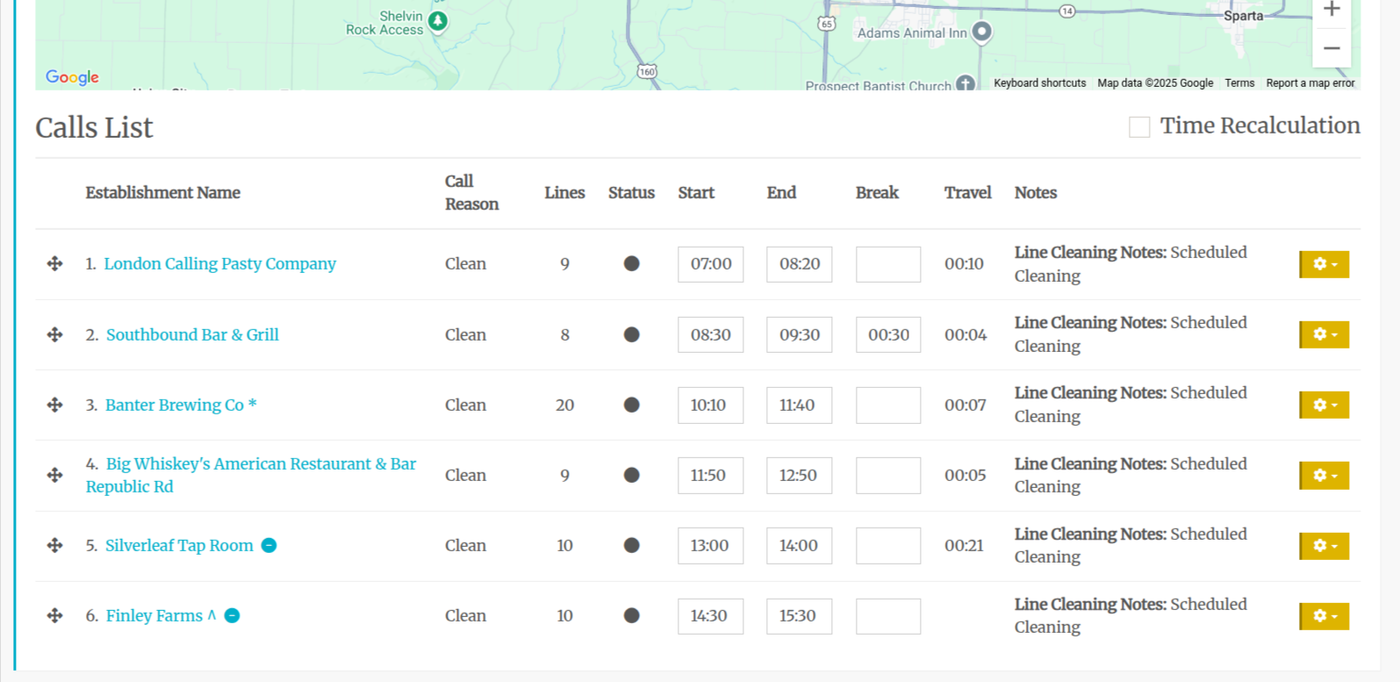
Moving the call to the last stop of the day removes the warnings so the route now has no conflicts and should go according to plan.
This did, however, add in more travel time so the route is not as efficient as it could be:
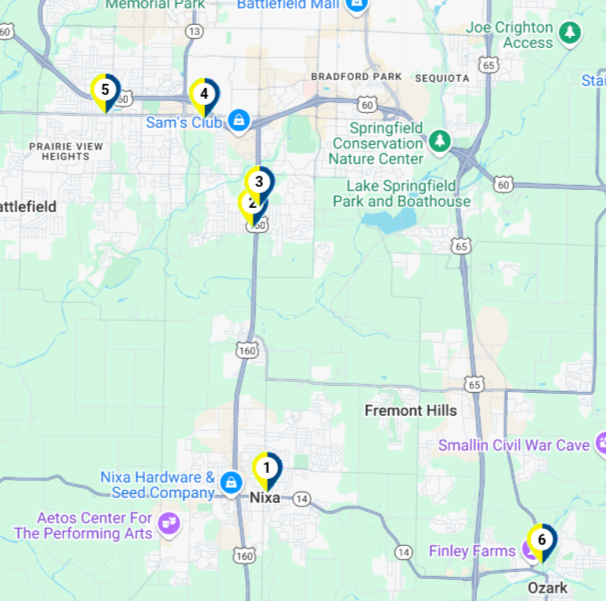
BUT the route works for this day.
Adjusting Breaks
You may want to adjust their break from the end of stop two to the end of stop three. To do so:
- Delete 00:30 in the break text box after stop two
- Type 00:30 in the text box for call three
- Check the Time Recalculation
Now you have this:
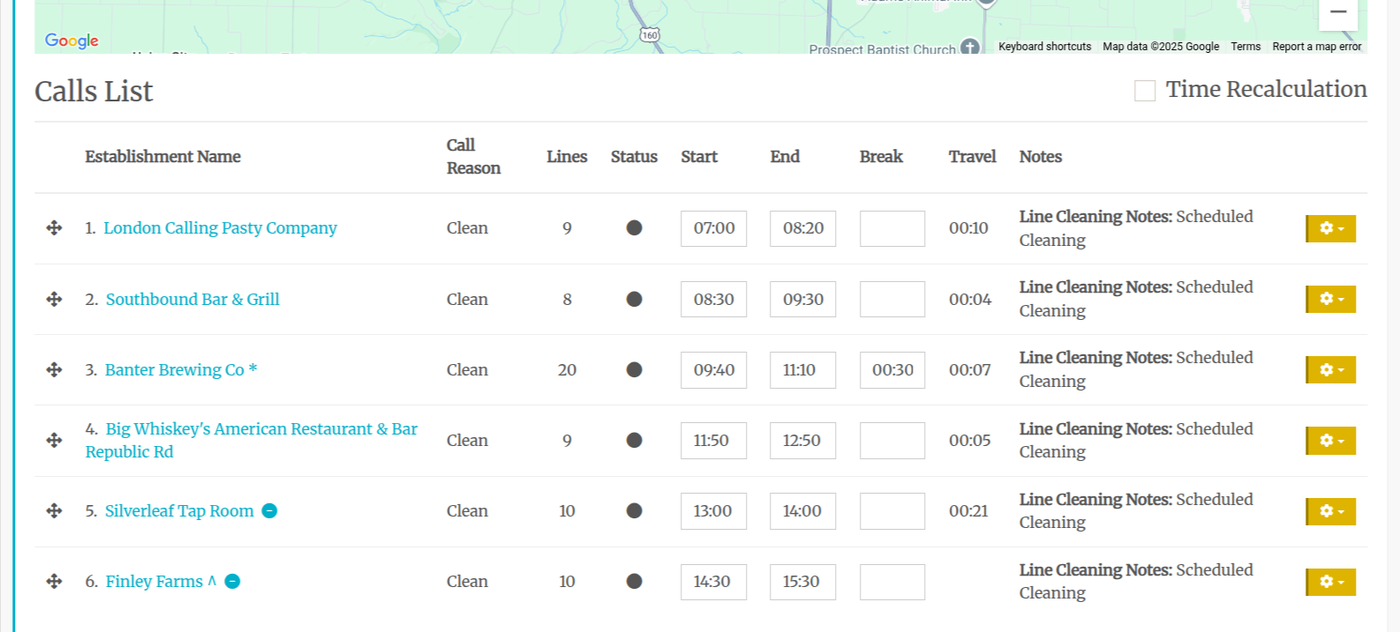
Perfect.
Make sure that the time recalulation check box is checked to ensure the time is recalculated. You can not just change the break without checking the box. Think of it like a save button.
Looking Forward:
You should go in and reorder the template to prevent this route from triggering a conflict in the future. I would suggest flipping the entire route so that you start with call 5 and finish with call 6. Call 5 now becomes call 1,...