

Since Route Templates are built without knowing which day of the week the route will fall on when auto-scheduled, we have built in schedule conflict notifications. On the Scheduled Routes page, the date that the route is scheduled will be in bold red font if there is a conflict.

Extended Day Conflict
In your Client Profile, you have the start and finish times for your standard workday. Not to say that you can't start or finish earlier or later, but if you have a Scheduled Route that extends past the finish time as outlined in your Client Profile, you will receive an error message.
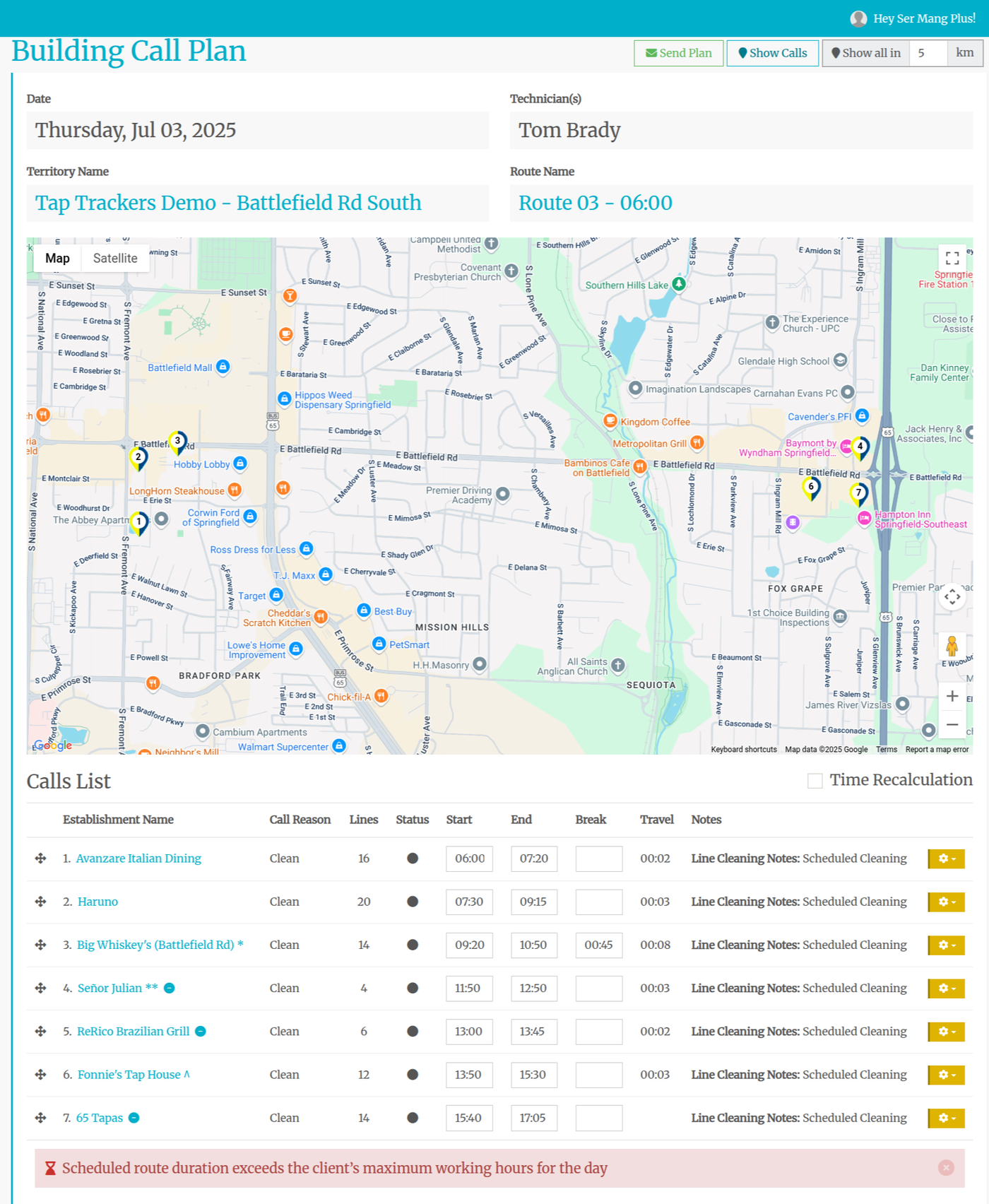
If you are fine with the extended day, simply click the red X to the right of the warning.
If not, you need to move a stop on this route to a different route.
First, we need to correct the problem in the Templated Routes page. You can see here that the problem route is number 3 as the total route time is 10 hours and 31 minutes:

This should have been corrected when building the routes, but we will correct it now.
Notice that Route 1 only has two stops and a total time of under five hours? We need to move a stop from Route 3 to Route 1.
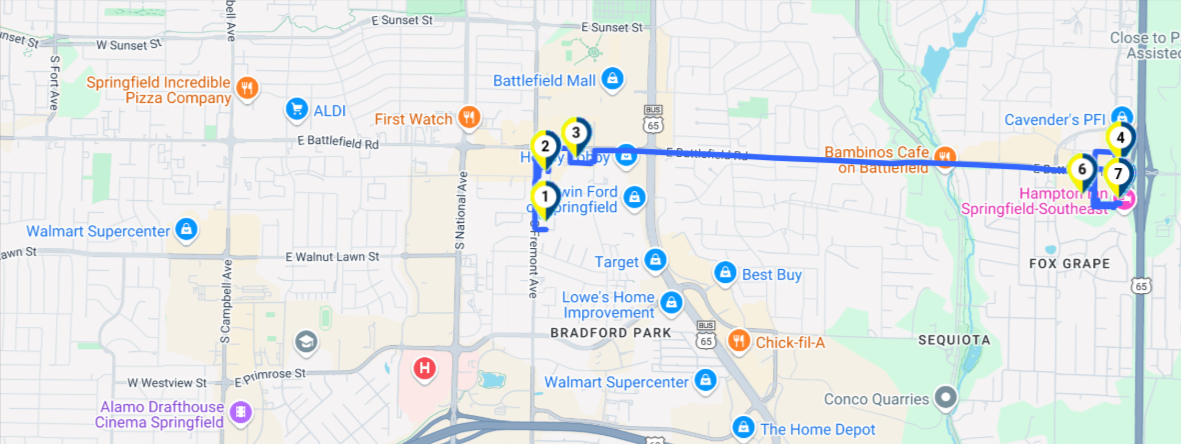
Best practice is to look at both routes and find an establishment in route three that is the closest by travel to route 1.
Route 3:
Route 1:
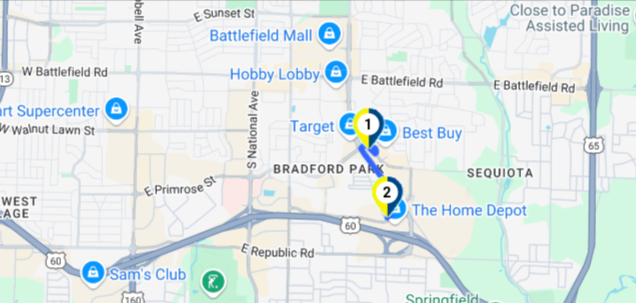
Lucklily the two routes are very close to each other. Moving stop one and two in route three to route one makes the most sense.
Here is how:
- On Routes Template Manager, select the route you wish to remove the stops from
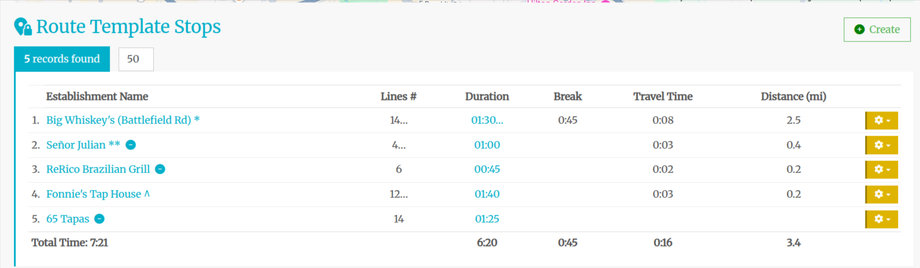
- Click the gear icon to the right of the stops you wish to remove from the route. In this case stop 1 and two in route 3.It now looks like this:
- Ope the page (or refresh it if it was already open) for Route 1. You'll now see two red pins on the map. These pins signify stops athe are NOT assigned to a route:
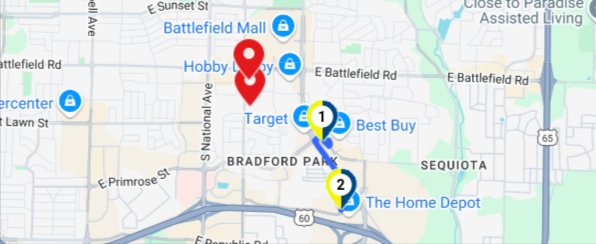
- Click on each pin and then click on Add To Route
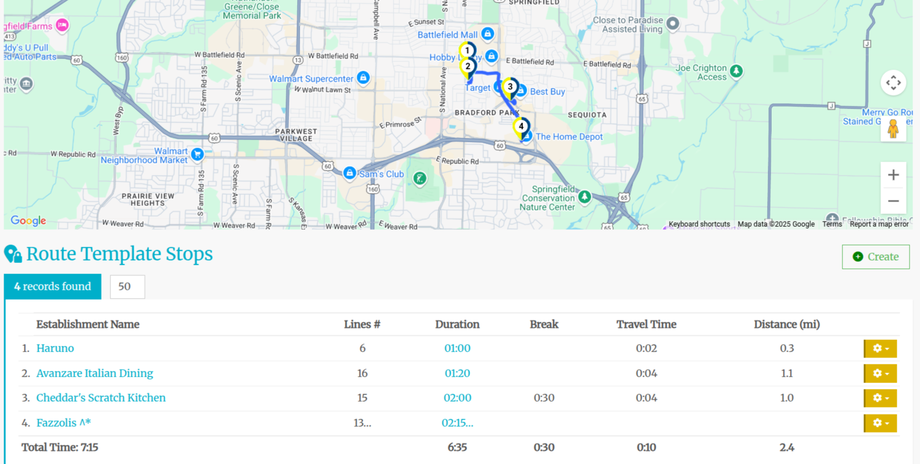
- The stops will be automatically placed in the most efficient order to minimise drive time. You can manually re-order as needed. Now Route 1 looks like this with a total Route time of 7:15. Not the Save button at the top of the page:
- Open or refresh the Route three page and you will see that the total time is now 7:21. Hit Save.
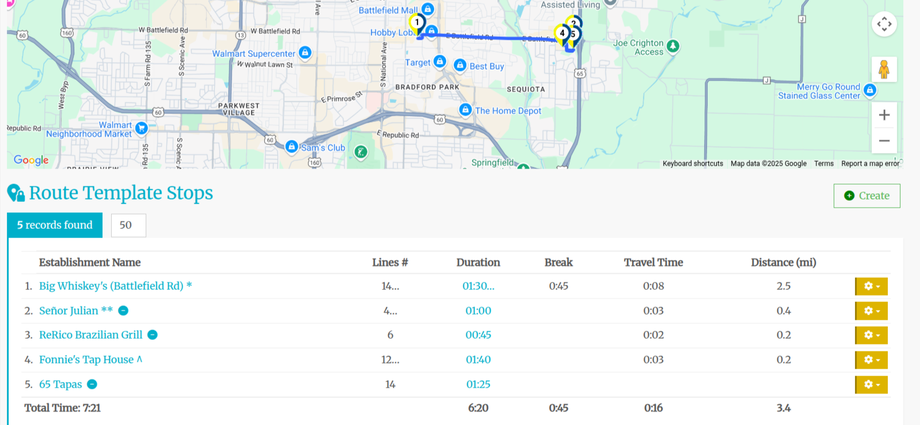
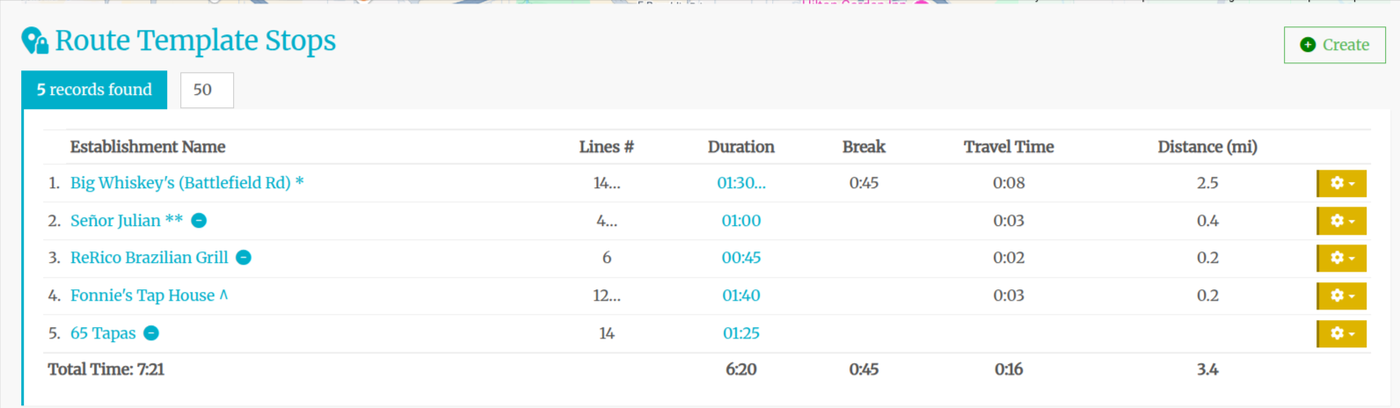
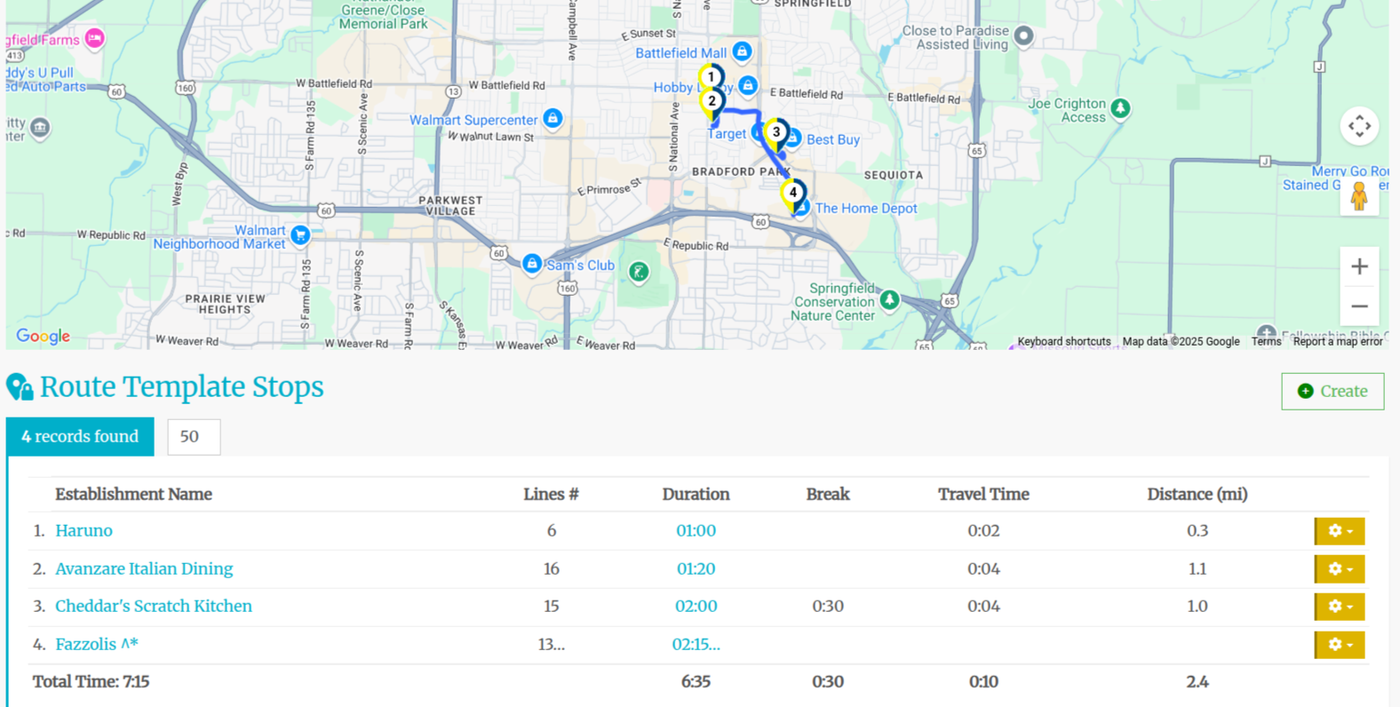
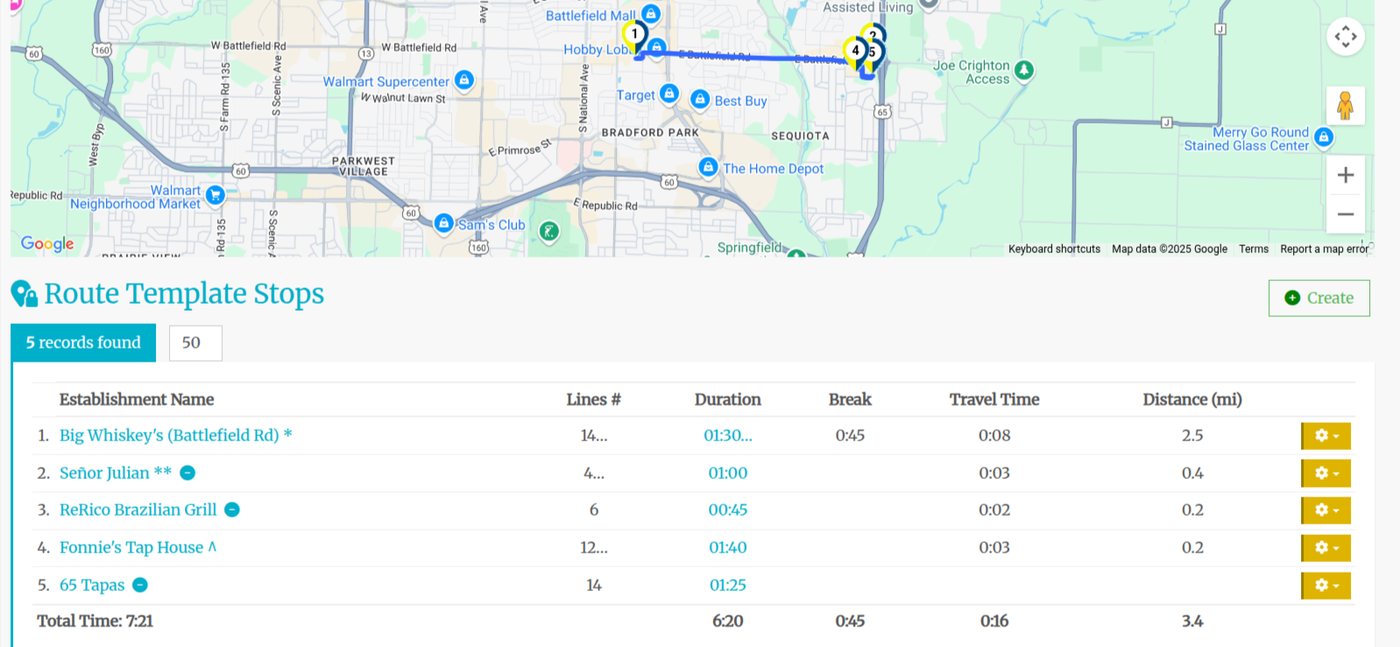
Now the problem will not occur on this route in future. This highlights the importance of making sure that templated routes stay within the confins of normal workday length when creating them.
Next we need to reschedule stops one and two for this scheduled clean.