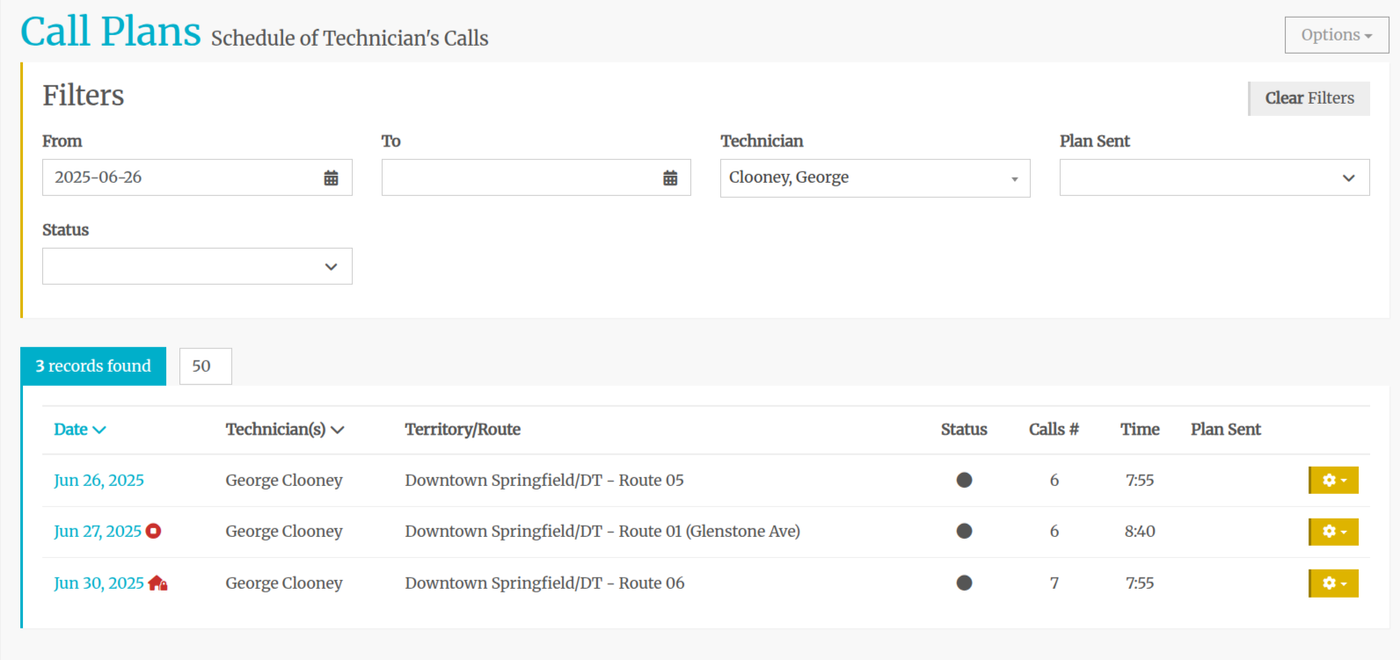

Since Route Templates are built without knowing which day of the week the route will fall on when auto-scheduled, we have built in schedule conflict notifications. On the Scheduled Routes page, the date that the route is scheduled will be in bold red font if there is a conflict.

Closed Date
If the scheduled route falls on a day of the week that the establishment is closed, you will see a red house with a lock on it icon: 
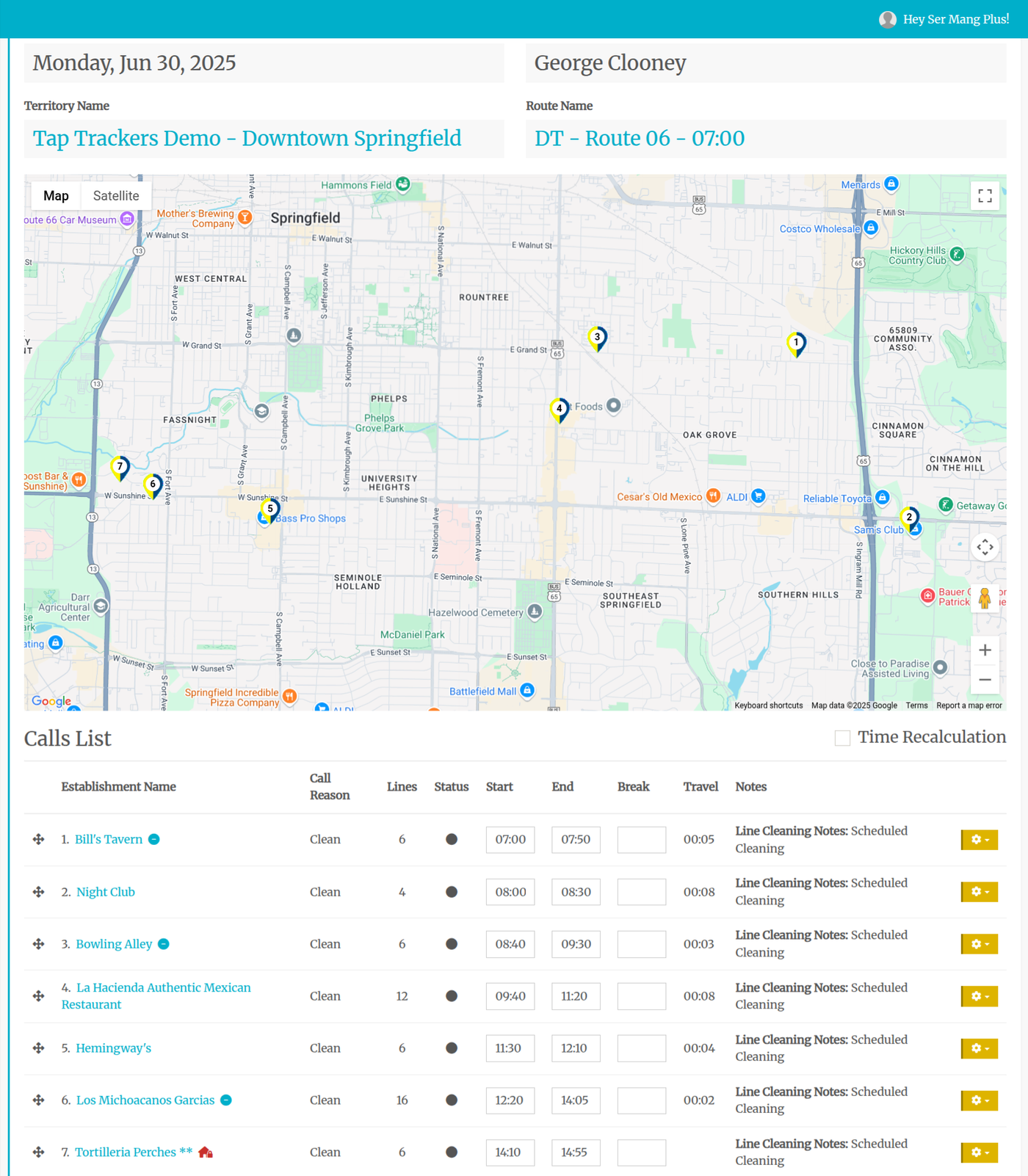
Note that stop #7 has the red house Closed Day icon. Clicking on the icon will pull up the No Go Hours:
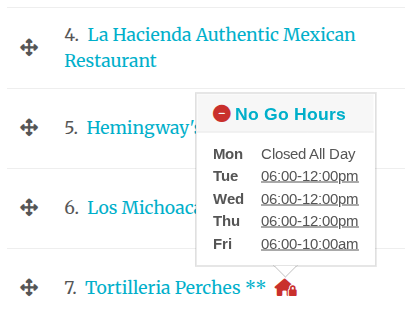
In this example, the scheduled route is set for a Monday, a day when Tortilleria Perches is closed.
Solution
You shouldn't change the Templated Route because the chances of it falling on a Monday again are one in five. Also, by changing it to another templated Route, the same thing may happen on that route.
It is much easier to reschedule this stop this one time.
- Go to the Call Plan page and change the filter only to show the tech that is assigned the route with the conflict stop - George Clooney, in this case. This displays all active scheduled call plans for this technician.
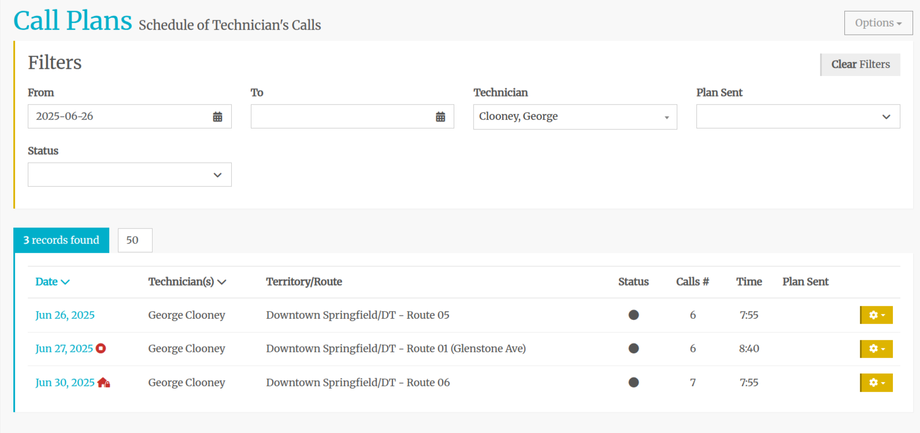
- I see that the June 26th call plan is less than 8 hours and has no other conflicts. The stop we have to reschedule is only 30 minutes.
- Click on June 30th to pull up the call plan for that day - the date with the schedule conflict.
- Click the gear icon on trhe far right of the line for call 7, then Update Call.
- Scroll down to Call Details section and change the date to the date that you would like to reschedule the call on - June 26th in this example.
- Hit Save.
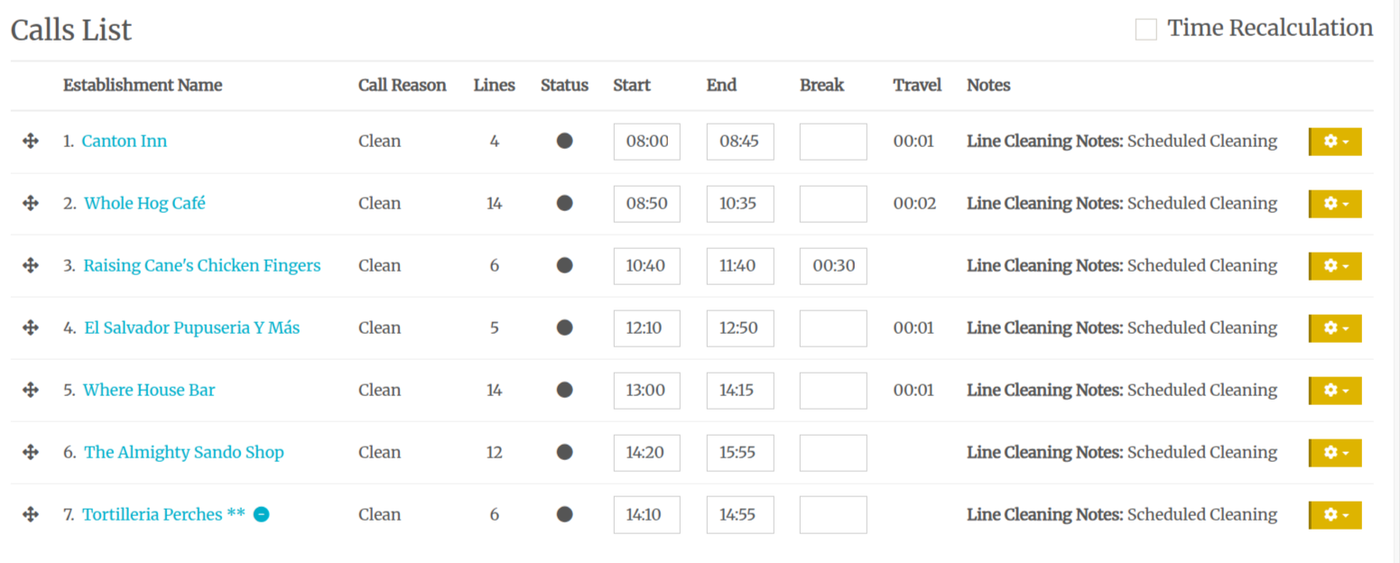
- Head back to the Call Plan page and click on the call plan for that tech on the date you rescheduled it for - June 26th, George Clooney in this example. This is what we see:
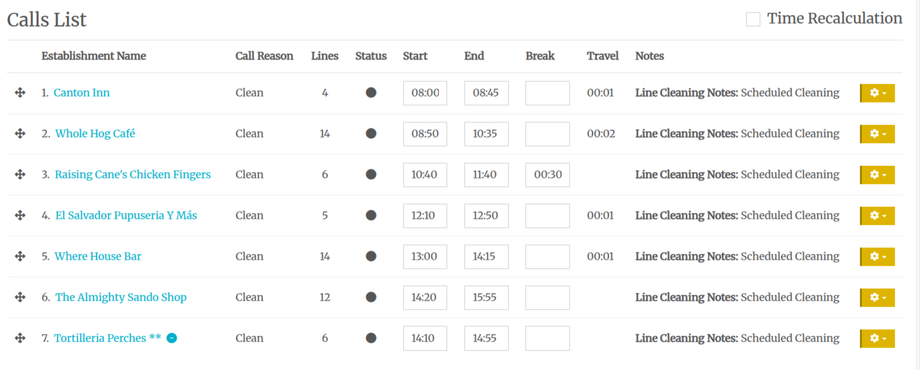
- Since we have two calls scheduled at the same time (call 6 and 7), we need to reschedule call 7 to start at 16:00 instead of 14:10. Click on the est name for call 7 and navigant down to the Call Details section. Change the start time to 16:00
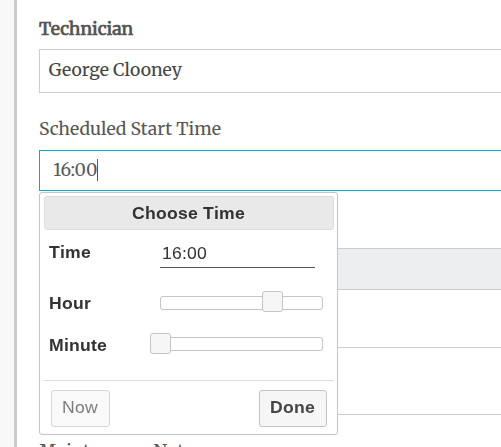
- Hit Done, then Save at the bottom of teh page.