
Make sure you have read the Understanding Routes article before building your routes and adding stops.
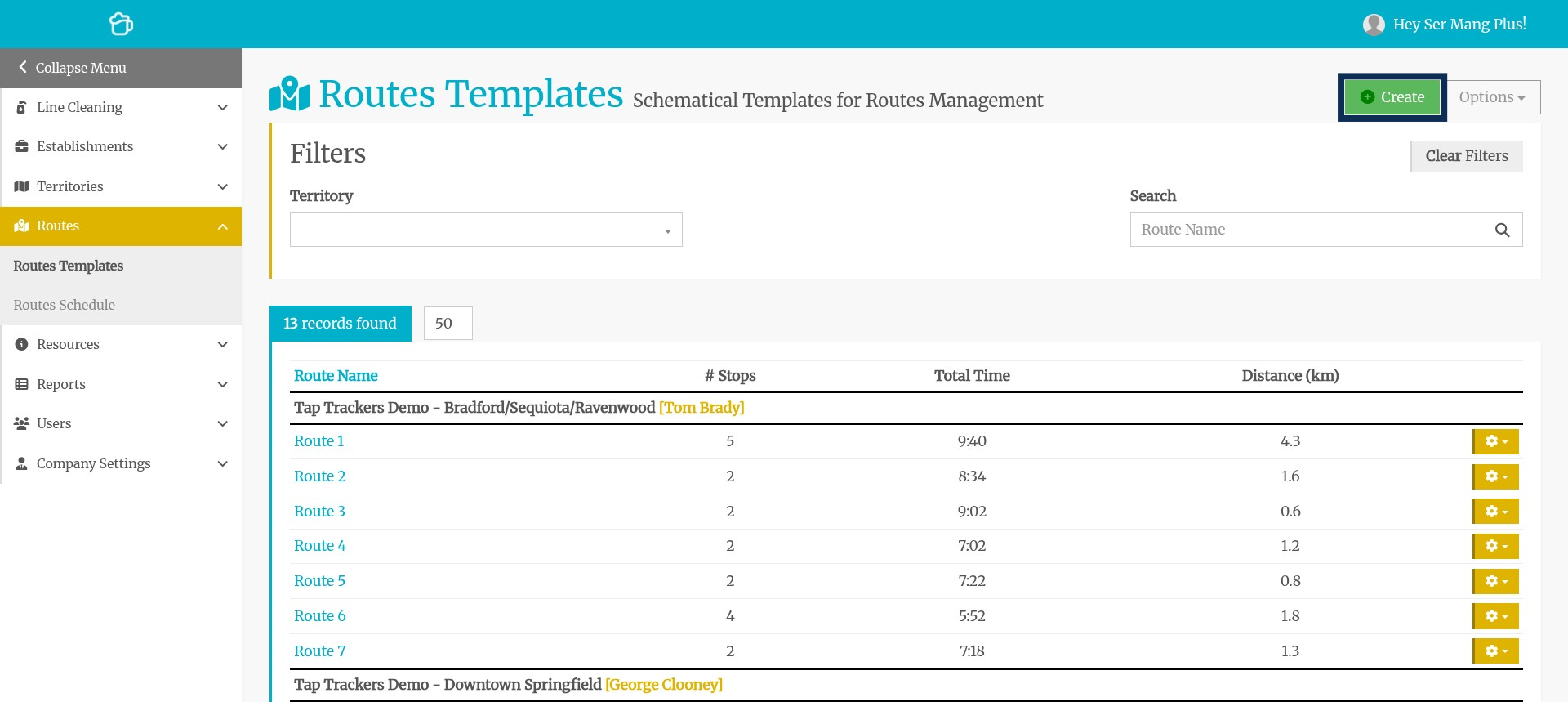
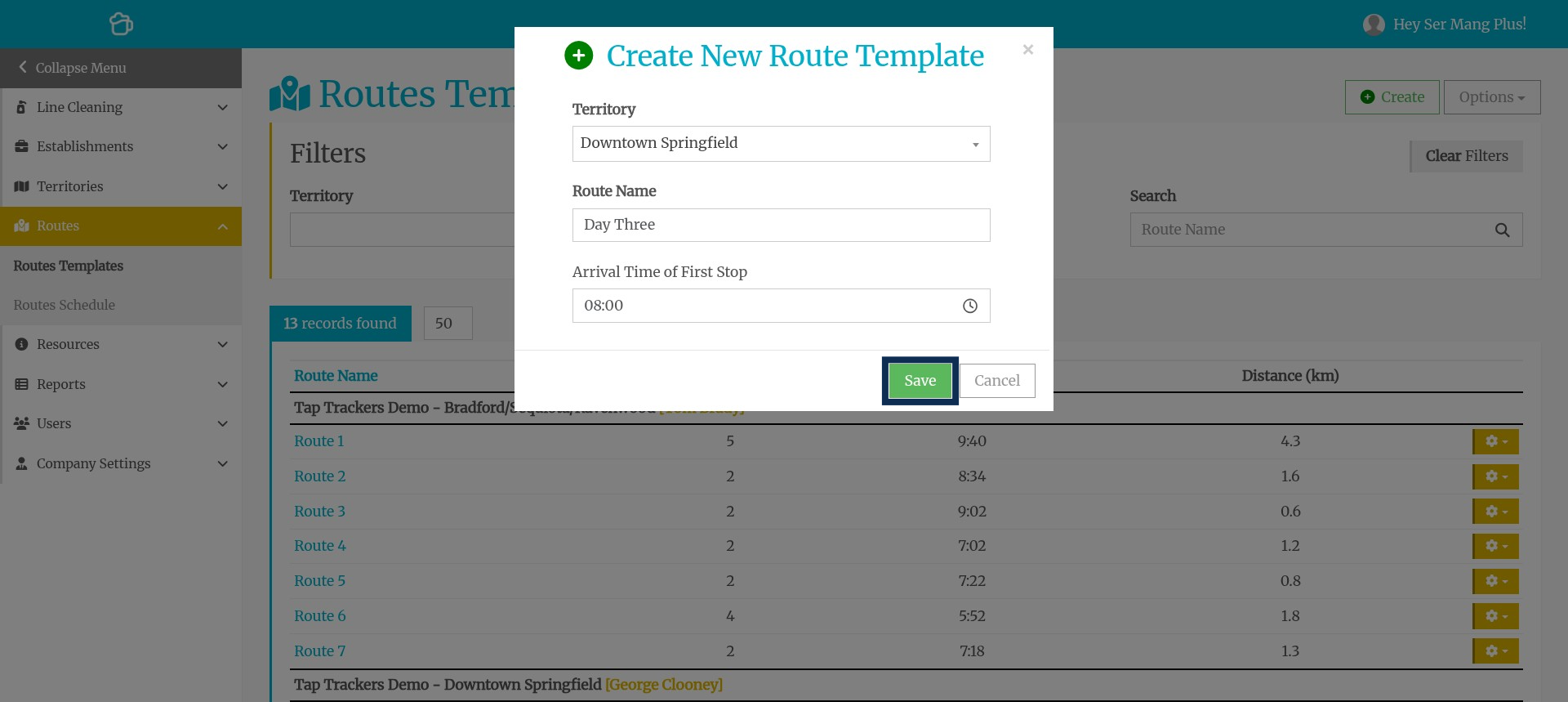
Step 1: Navigate to +Create
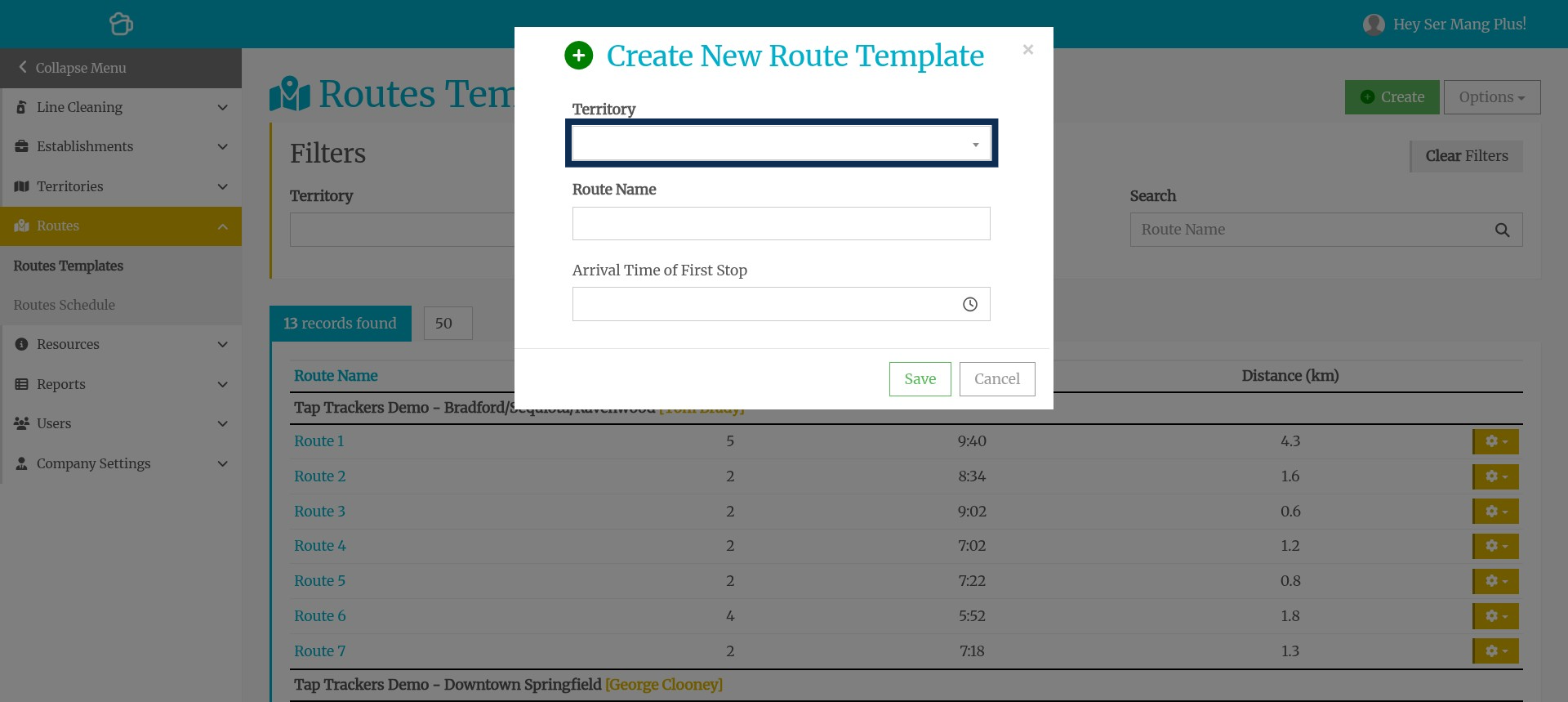
Step 2: Select the Territory from the drop-down list
You created these in the Territory Manager.
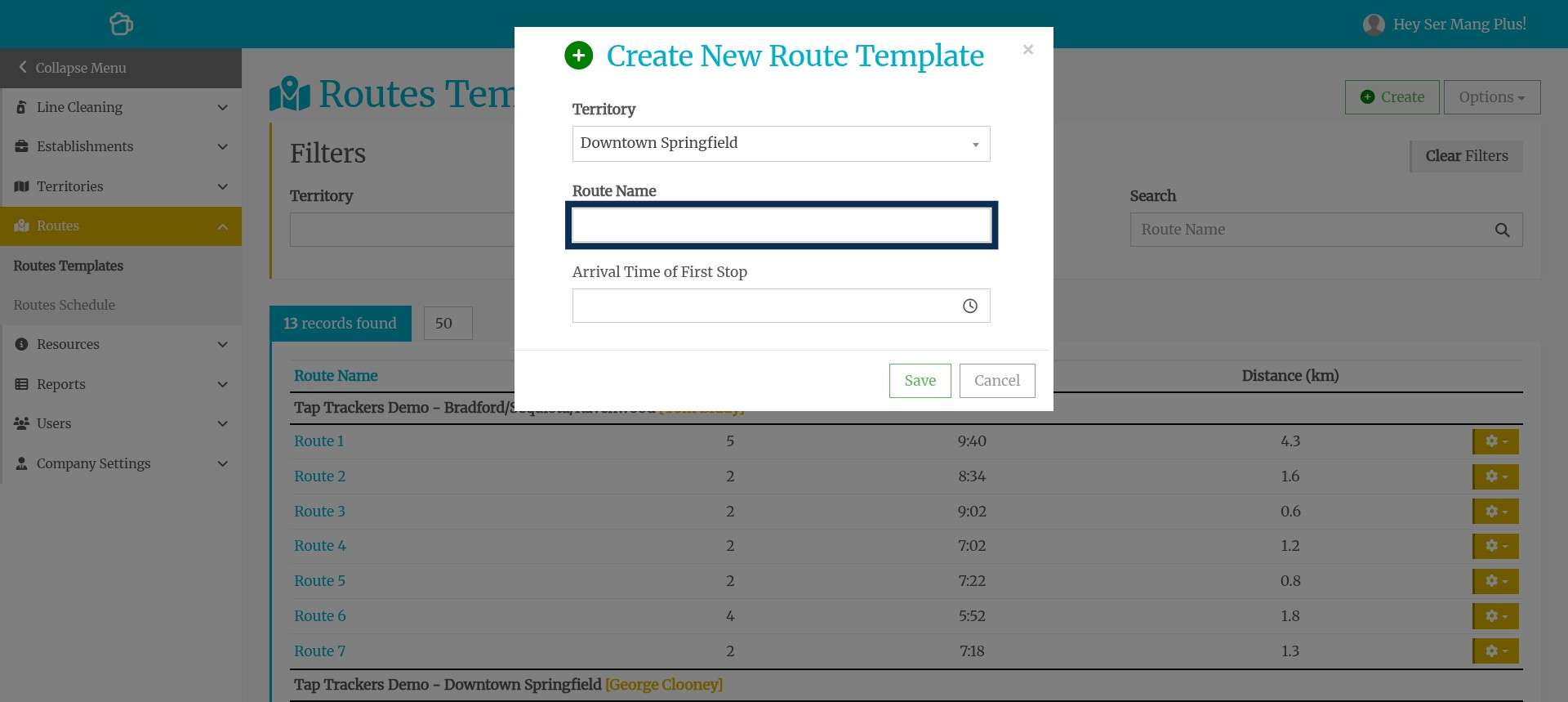
Step 3: Type in the name of the new route.
Step 4: Click Enter the time of the first stop in this route.

Step 5: Click the Done button

Step 6: Click the Save button
Step 7: Now it is time to add stops for the route. Click on the route to which you would like to add stops.

Step 8: On the map, zoom in to the stops you would like to add...

Step 9: Click on a pin to see the Establishment Name.
Click on the establishment name to open a page with the establishment details. Click on the green Add To Route button to add that establishment as a stop to this route.

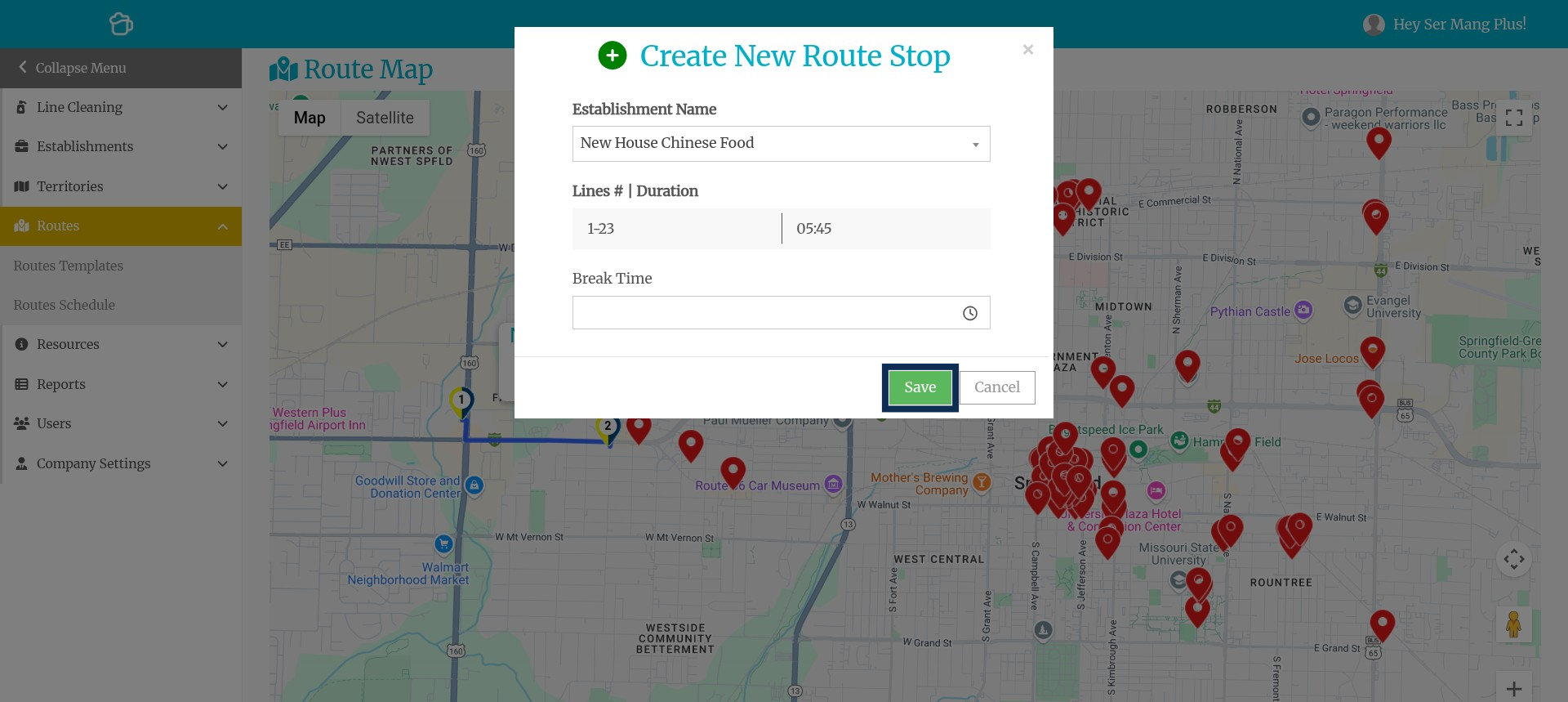
Step 10: Add Stop & Add Break (optional)
If you would like to add a break for your techs AFTER this stop, click on Break Time and select the length of time for the break.

Step 11: Click on the pin of the next stop that you would like to add.

Step 12: Continue adding stops

Step 13: Click the Save button for each stop you would like to add.
Do not worry about putting the stops in a specific order. You can always easily adjust stops later. You can also add break times later.

Step 14: Click the Add To Route button

Step 15: Click the Save button