

On the Line Cleaning Status page, you can check the current status of each line you service.
This is a snapshot of the length of time since a line has been cleaned. Not to be confused with line cleaning reports that show the history of a line cleaning.
Filters
Like all pages on the Tap Trackers site, the default number of lines to show in a table is 50. You can change this to 5, 10, 25, 50, 100, or 250 by clicking on the number 50:

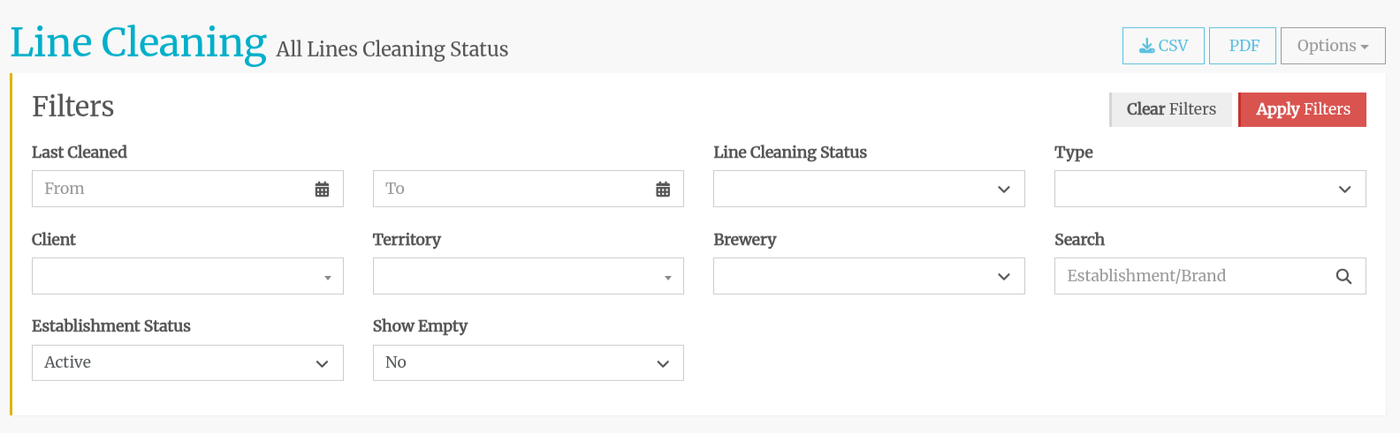
Use the filters to show the lines you wish to see. Make sure to click Apply Filters once you are finished sorting.
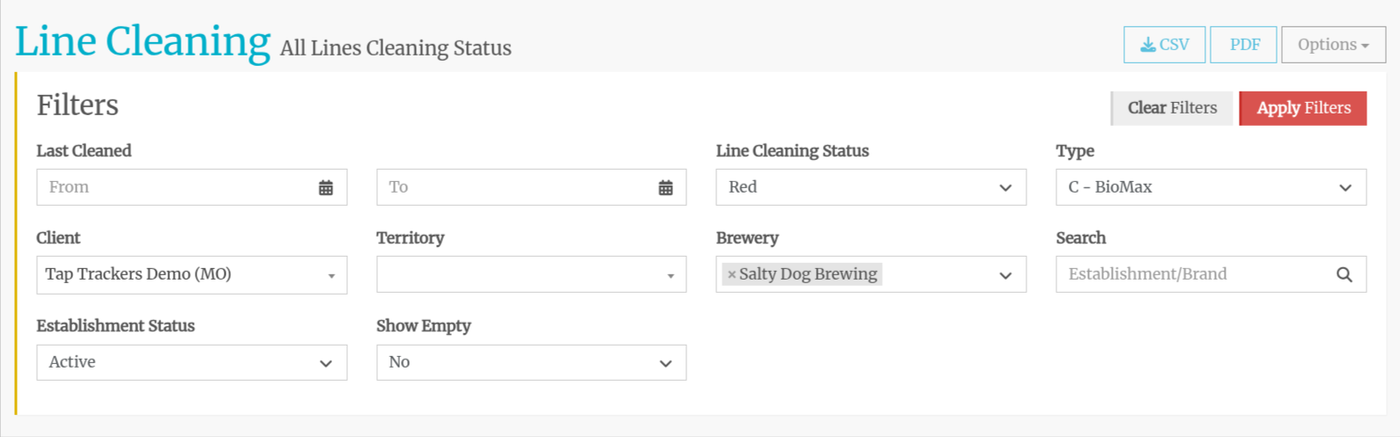
For example, to see all of the lines in "RED status for Caustic clean from Salty Dog Brewery:
The results...
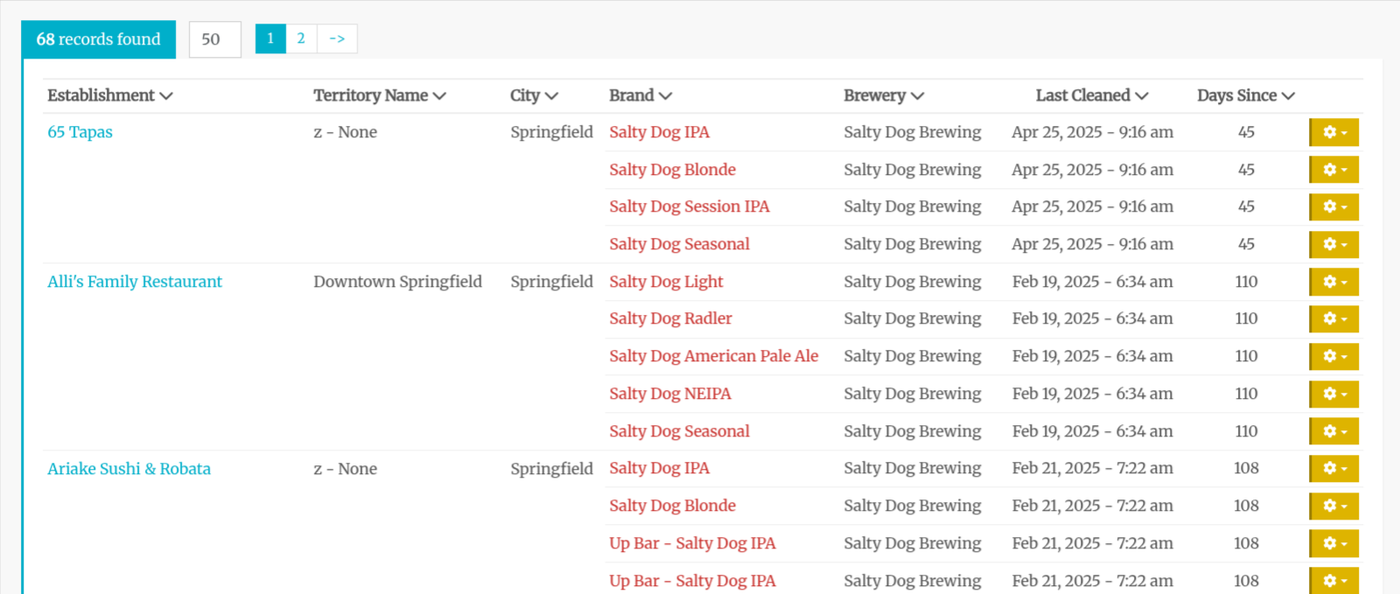
You can sort the results by clicking the V beside the column name.
Line Cleaning History
While the line cleaning reports provide an in-depth history of line cleaning, the Line Cleaning Status screen also includes a basic cleaning history. Clicking on the brand name, you will see the cleaning history for that line:
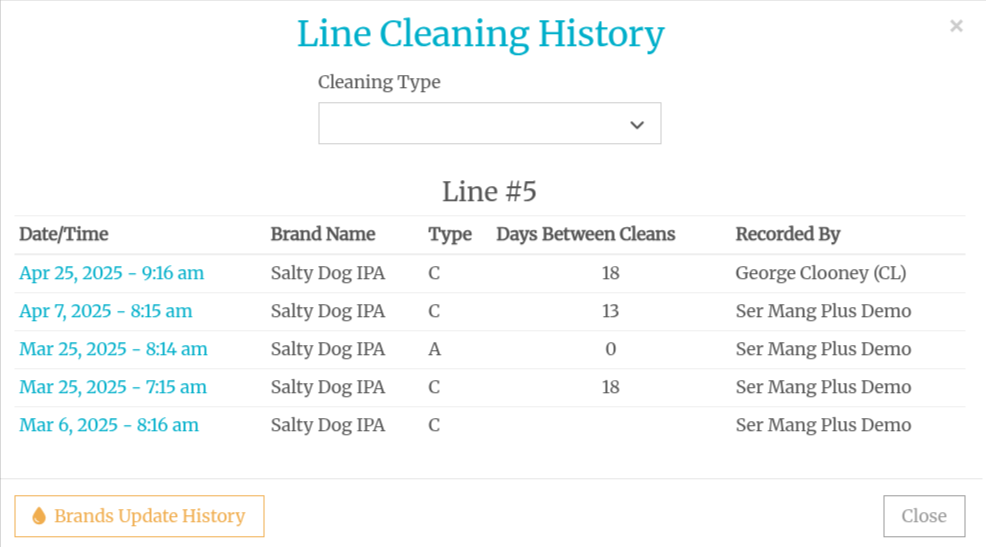
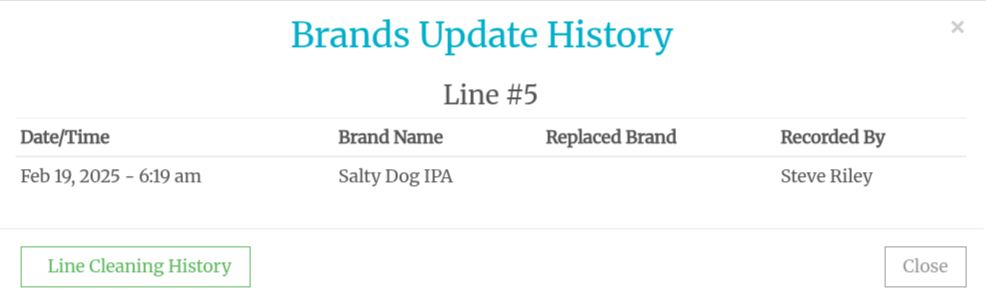
Click on the yellow Brand Update History button to see the history of brands on that line:
You can save the report as a PDF or a CSV (Excel) file by clicking on the buttons in the top right corner of that page. Please note that you can not save a PDF file when there are more than 1,00 records.