There are three ways to record line cleaning:
Using the Call Plan feature
Manually recording them
Scanning a QR code at the establishment.
Using the QR code
Each establishment has a unique QR code that, when scanned, will send the user to the Record Line Cleaning page.
After logging in, they can check off which lines they cleaned and select which type of cleaning it was.
There is a section for Housekeeping notes where they can enter in any optional notes.
There is a section where they can order any parts or services that were used during the cleaning.
Printing QR Codes
QR codes will save as a PDF with your logo, phone number, and the establishment name. You then print them on an Avery 8168 - 4 per page shipping label (3.5 x 5)
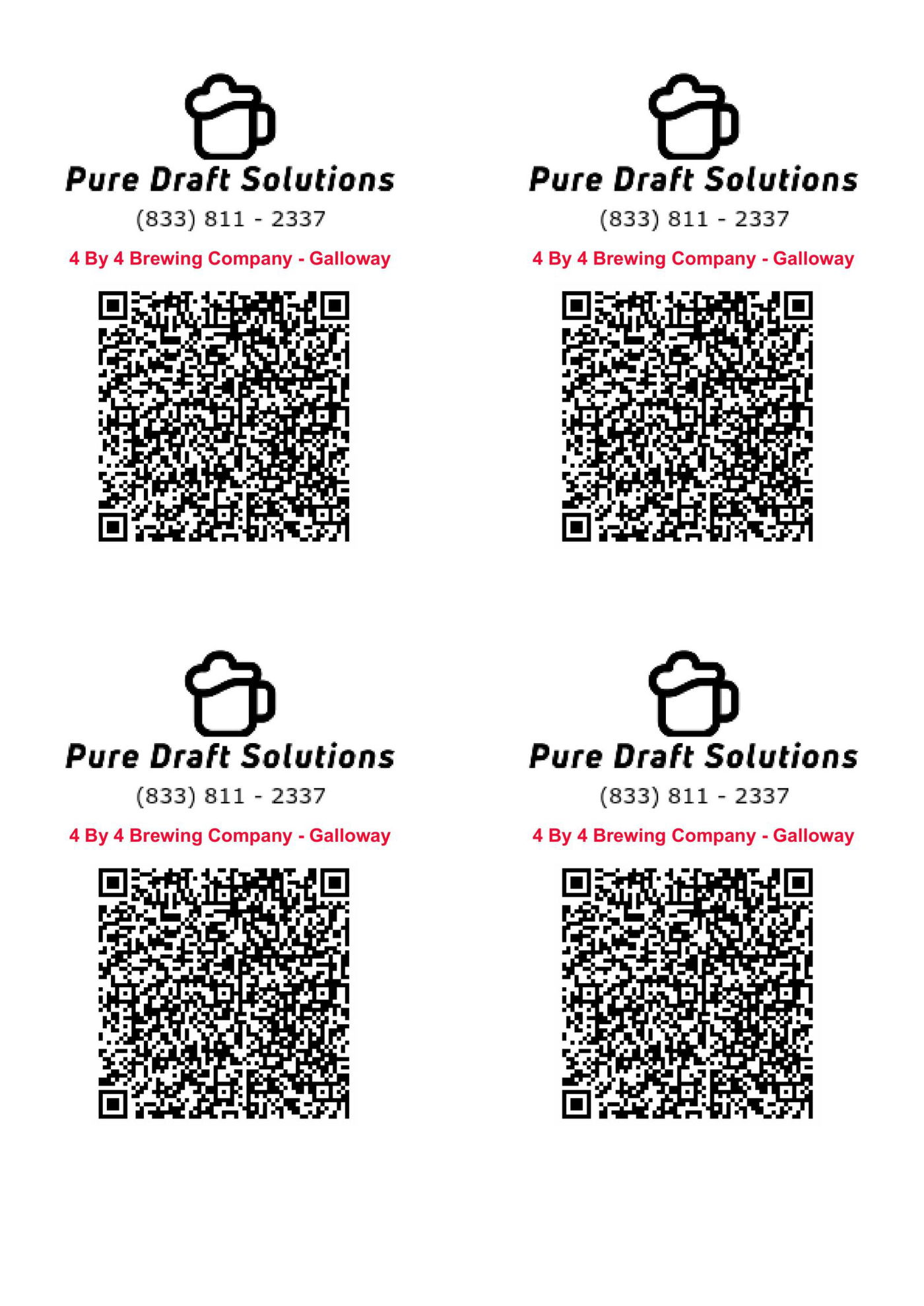
Where To Print Line Cleaning QR Codes?
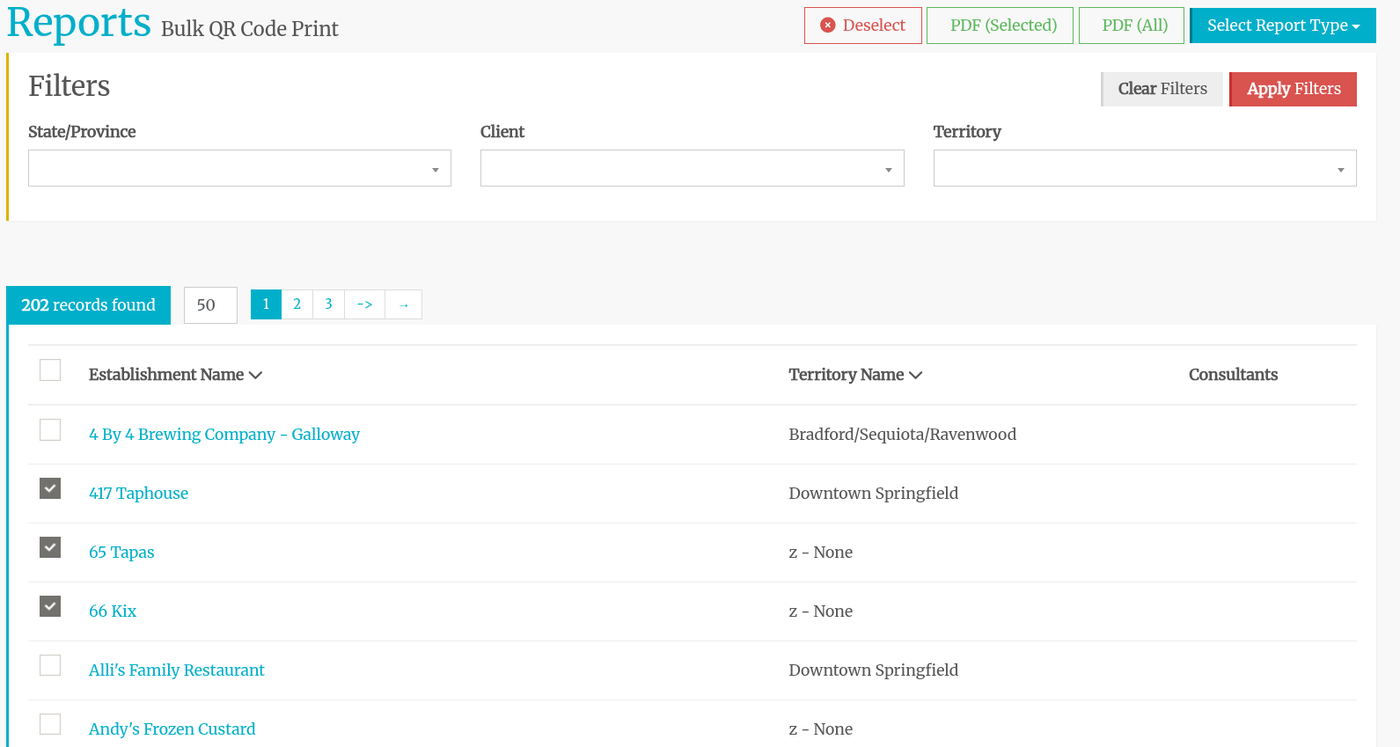
Navigate to Reports > Reports, then select Bulk QR Code Print from the Options tab.
Bulk QR Code Print
This allows you to print one label for one establishment or you can print labels for multiple establishments.
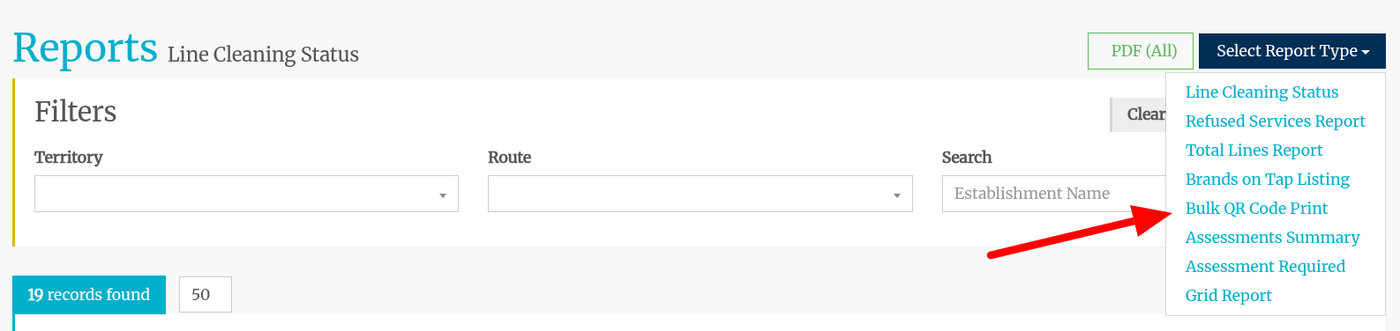
Then you have two options:
Download all - click the PDF (All) button. PLEASE have some patience. Have a beer. Get a snack. It will take the system some time to process all of the data and create a pdf.
Download individual establishments or select establishments by clicking the checkbox to the left of each establishment name. You may find it easier to change the records to display from 50 to 250. Then click on PDF Selected. You can select establishments on different pages.
Open the file and print with your Avery 8168 (or similar) labels in your printer.